Getting Started
What is Data Made Easy?
Data Made Easy (DME) is a research participant recruitment platform that connects researchers with study participants in the field of counseling. Researchers can post studies and recruit qualified participants, while participants can earn compensation by taking part in research that matches their profile.
All studies on the platform are in the field of Counseling.
Creating Your Account
Both researchers and participants create accounts from the same sign-up page. Your role determines what you can do on the platform.
How to Sign Up
- 1.
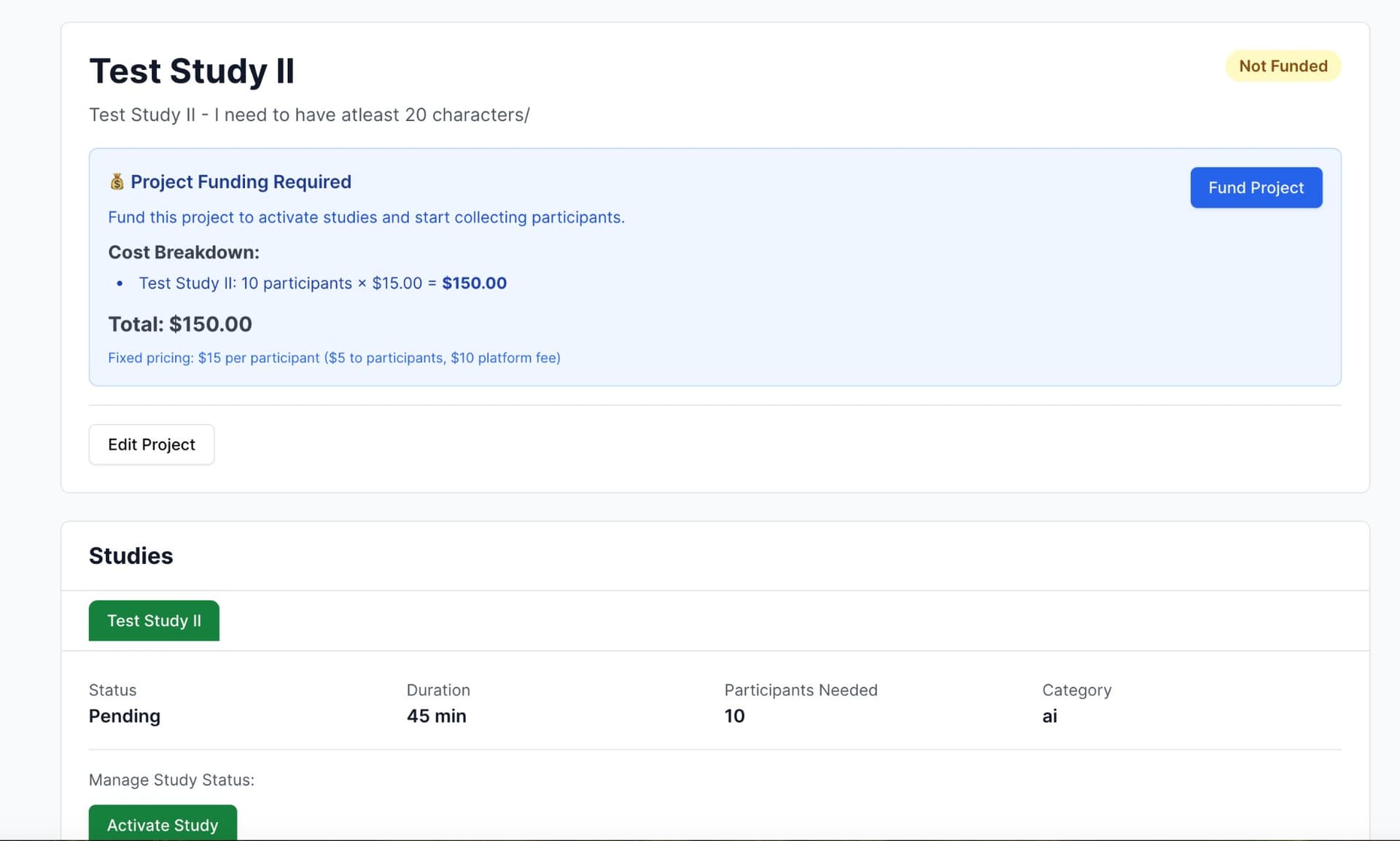
Visit datamadeeasy.org. Click Sign Up in the top-right corner of the homepage.
- 2.
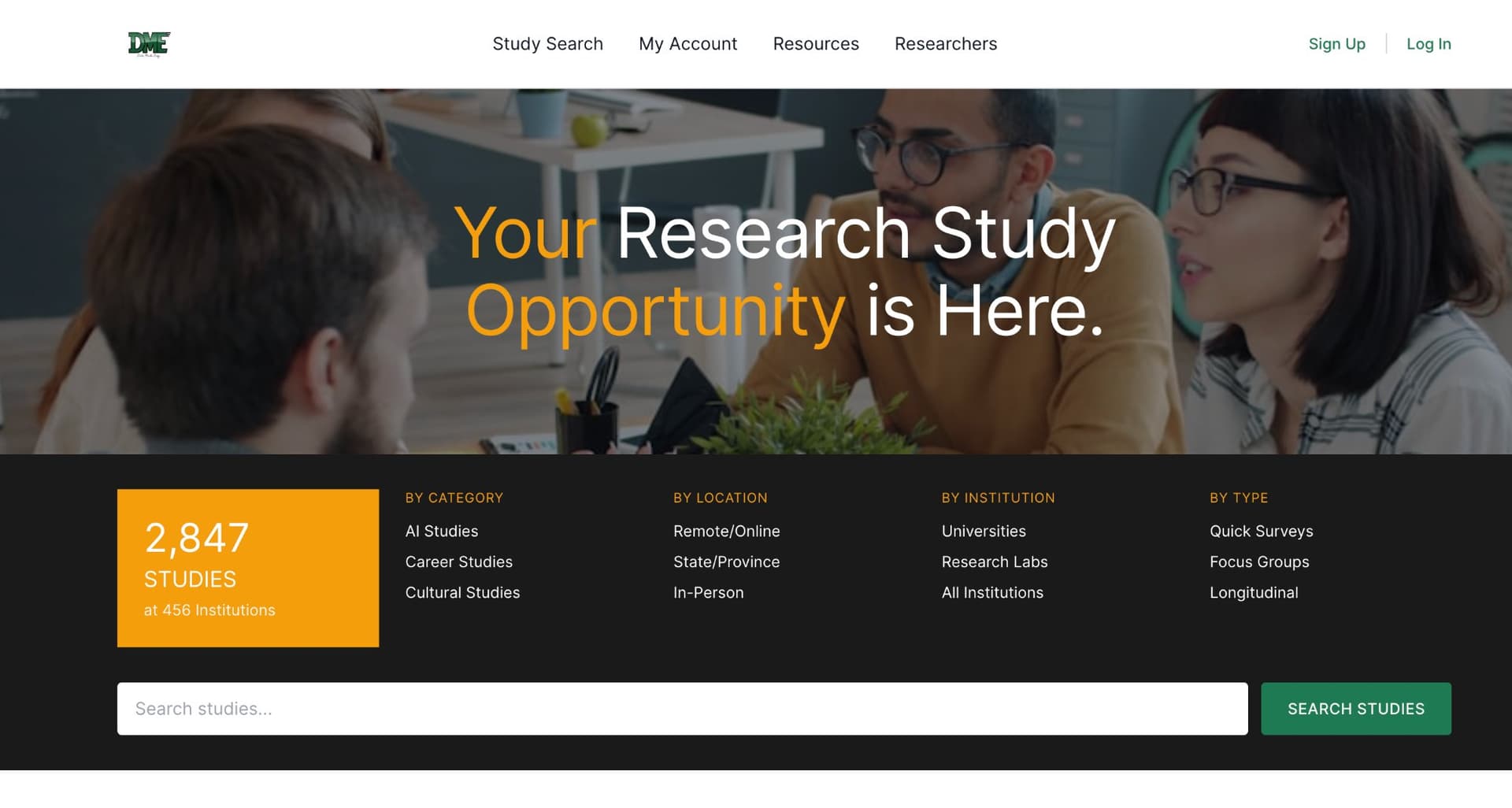
On the sign-up form, enter your Full Name, Email, and Password. Your password must be at least 8 characters and include at least one uppercase letter and one number.
- 3.
In the "I am a" dropdown, select your role: Researcher or Participant.
Signing Up as a Researcher
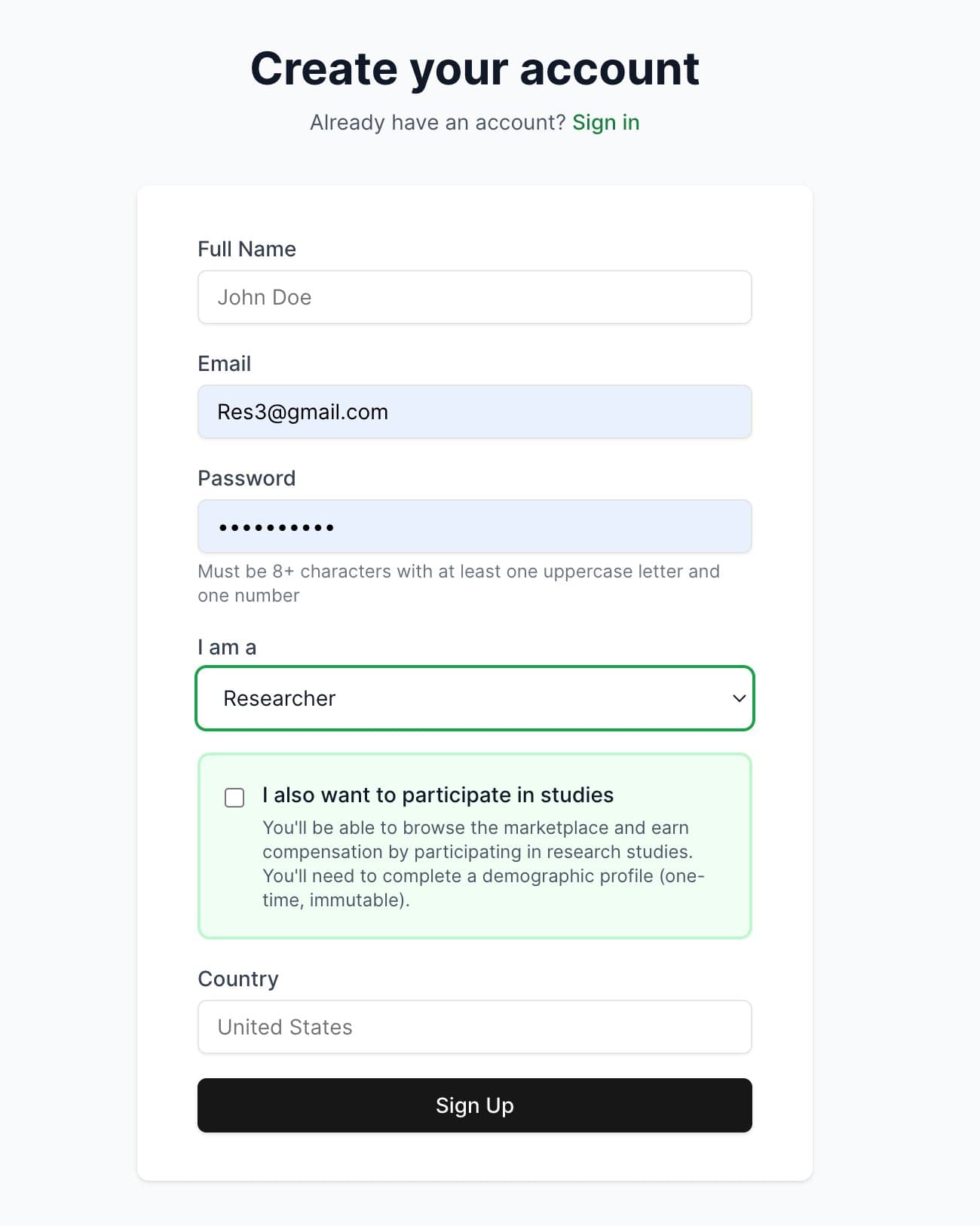
Select Researcher from the dropdown. If you also want to participate in studies yourself, check the "I also want to participate in studies" checkbox. This will require you to complete a demographic profile (one-time and permanent).
Signing Up as a Participant
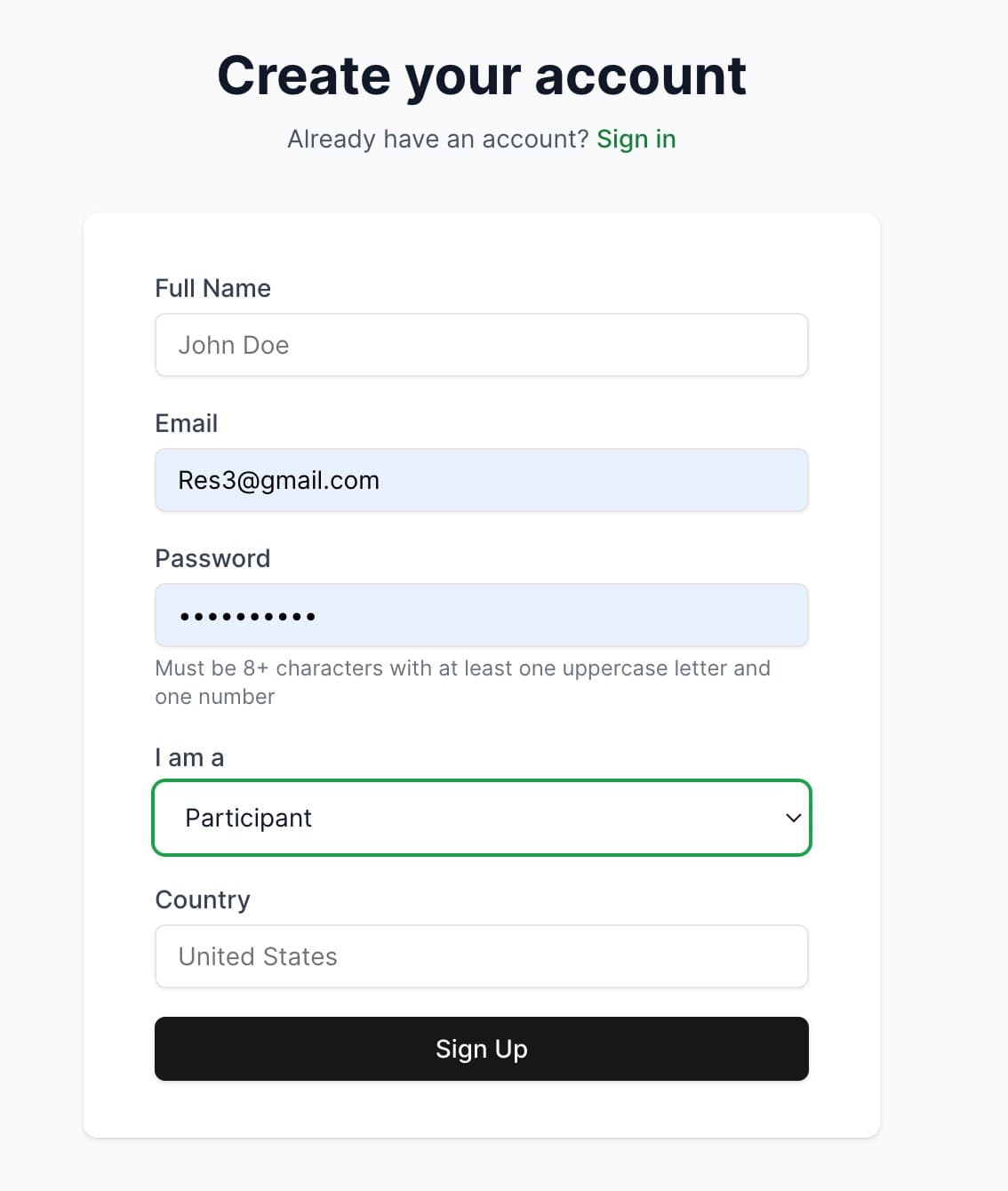
Select Participant from the dropdown. You will be prompted to complete a demographic questionnaire after signing up.
- 4.
Select your Country and click Sign Up. Your account will be created immediately.
Logging In
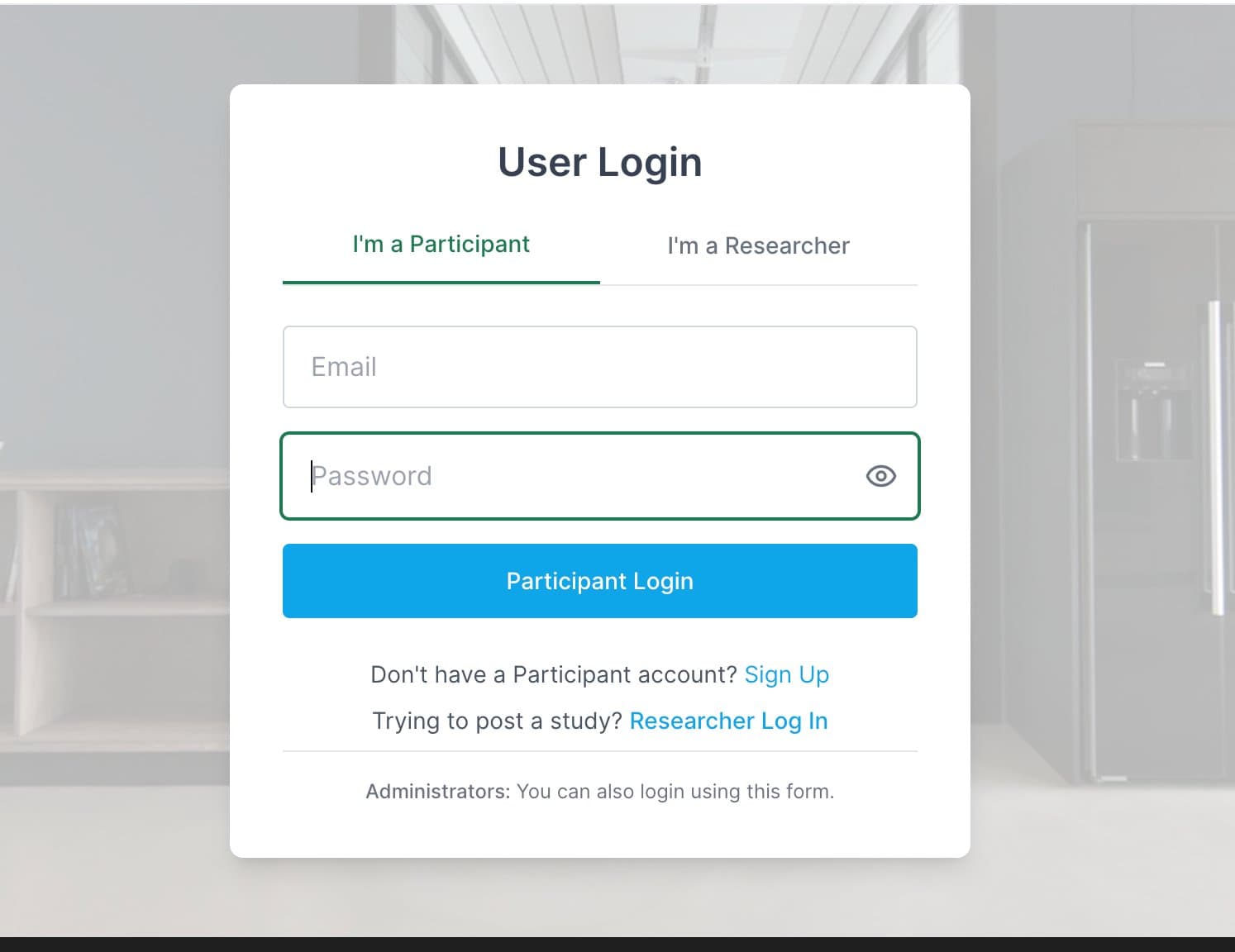
The login page has two tabs: "I'm a Participant" and "I'm a Researcher." Make sure to select the correct tab before entering your credentials.
- 1.
Click Log In in the top-right corner of the homepage.
- 2.
Select the tab that matches your role: I'm a Participant or I'm a Researcher.
- 3.
Enter your Email and Password, then click the login button.
Participant Login
Researcher Login
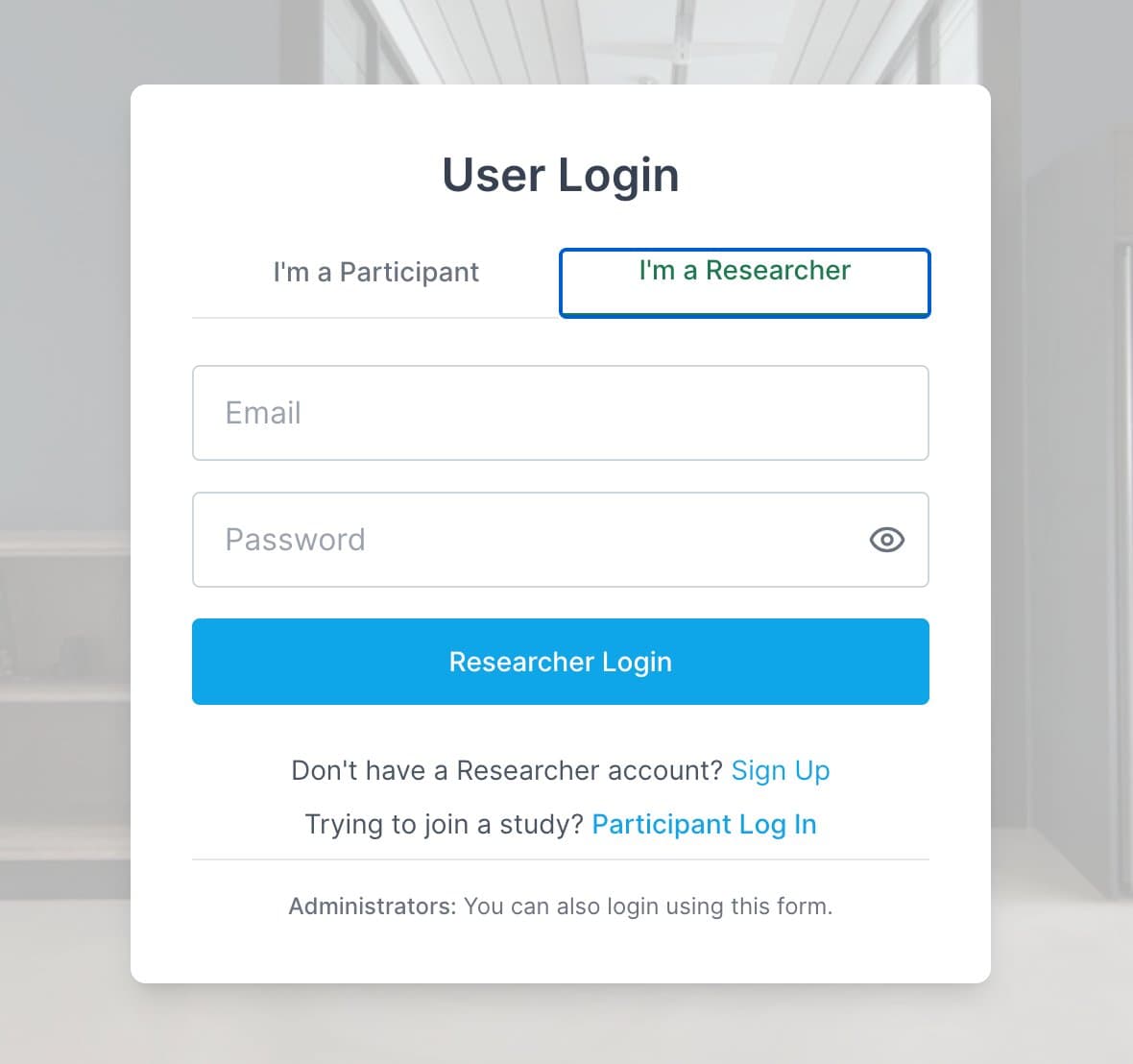
Tip: If you signed up as a Researcher but selected the wrong tab, use the "Trying to join a study? Participant Log In" link, or vice versa. Administrators also log in using the same form.
For Participants
This section covers everything you need to know as a participant: completing your demographic profile, browsing studies, enrolling, and tracking your participation.
Step 1: Complete Your Demographic Questionnaire
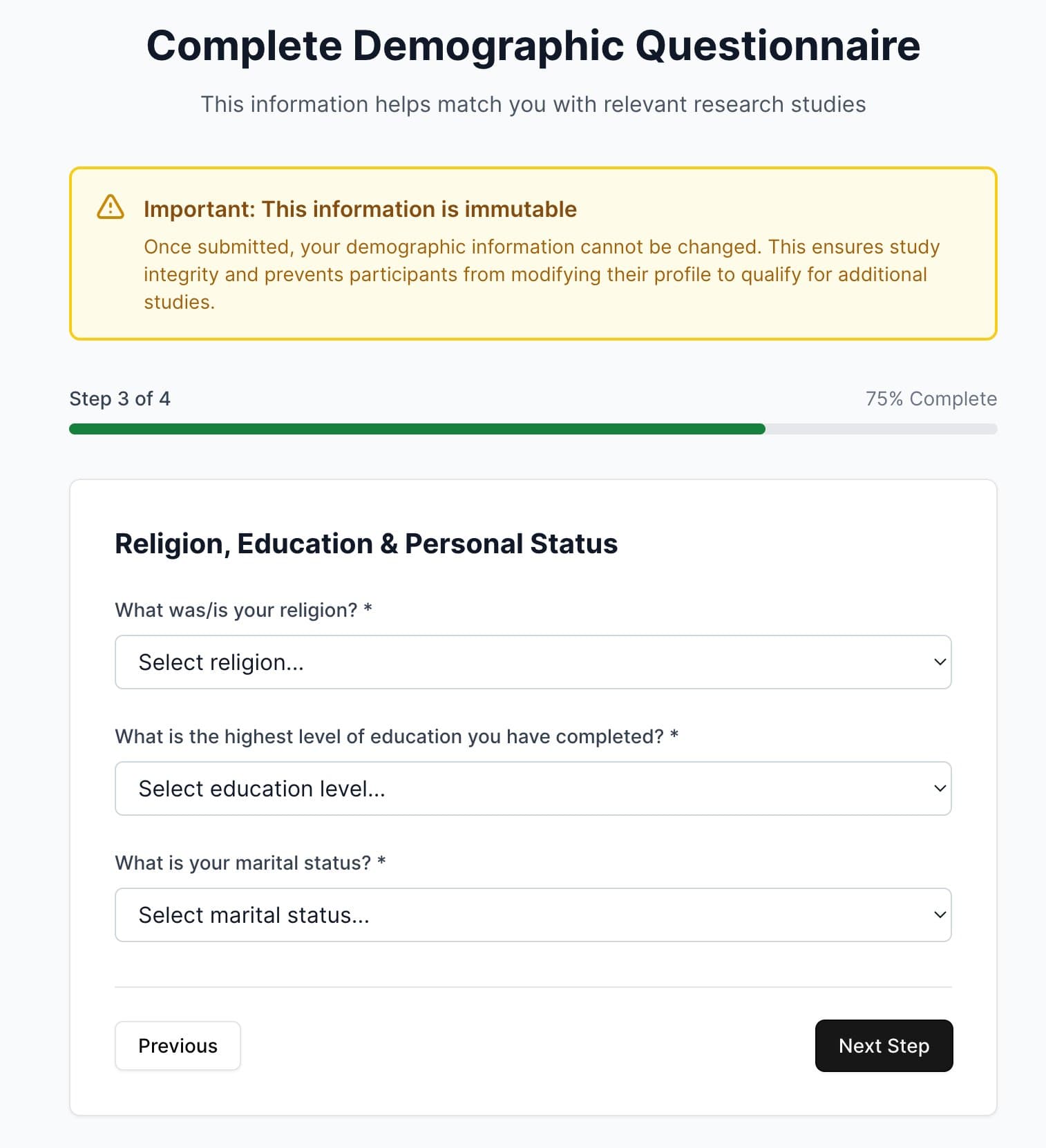
After signing up as a participant, you will be prompted to complete a 4-step demographic questionnaire. This information is used to automatically match you with eligible studies.
Important: This information is permanent. Once submitted, your demographic profile cannot be changed. Review all answers carefully before submitting.
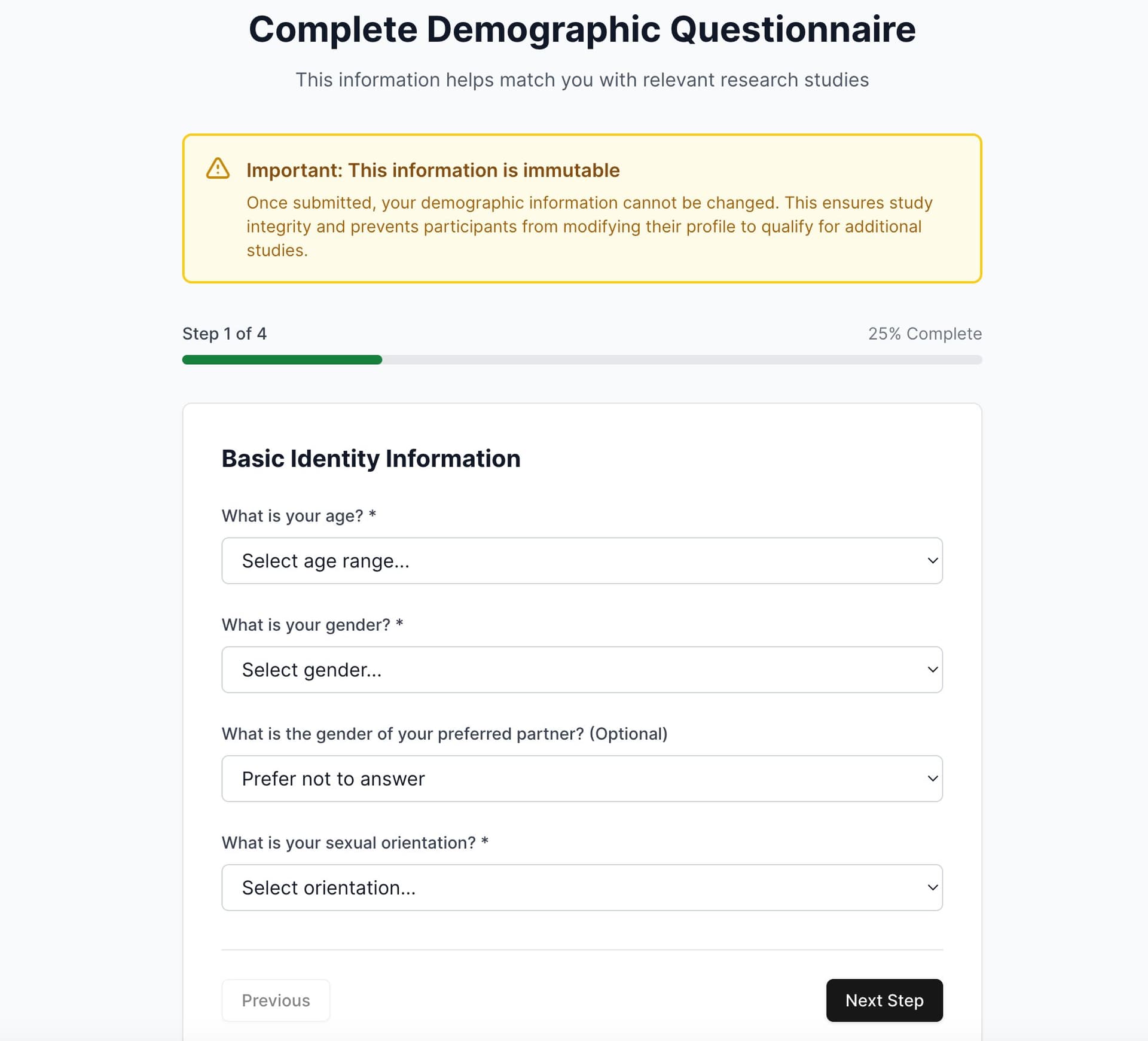
Step 1 of 4 — Basic Identity Information
Provide your age range, gender, preferred partner gender (optional), and sexual orientation.
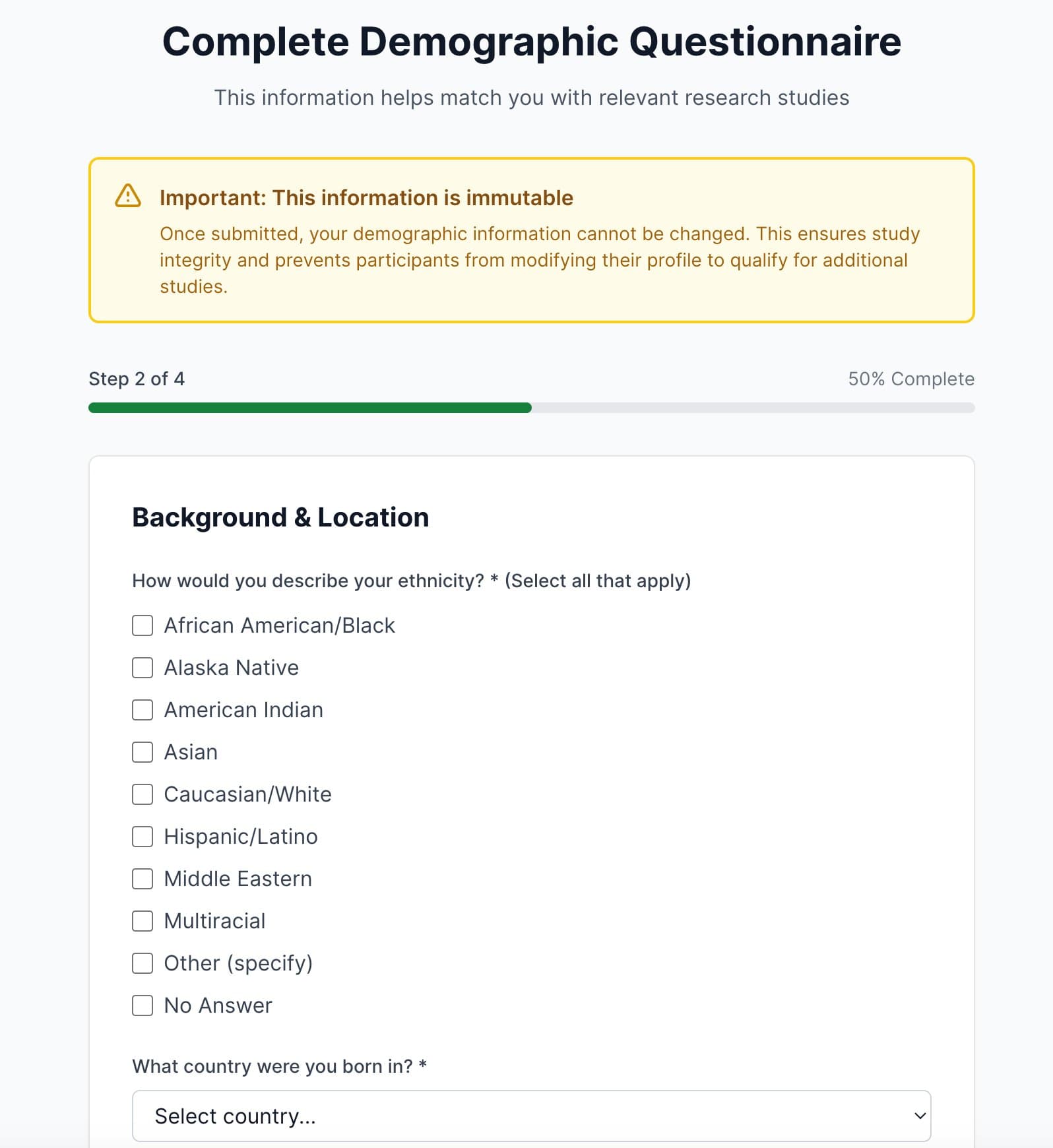
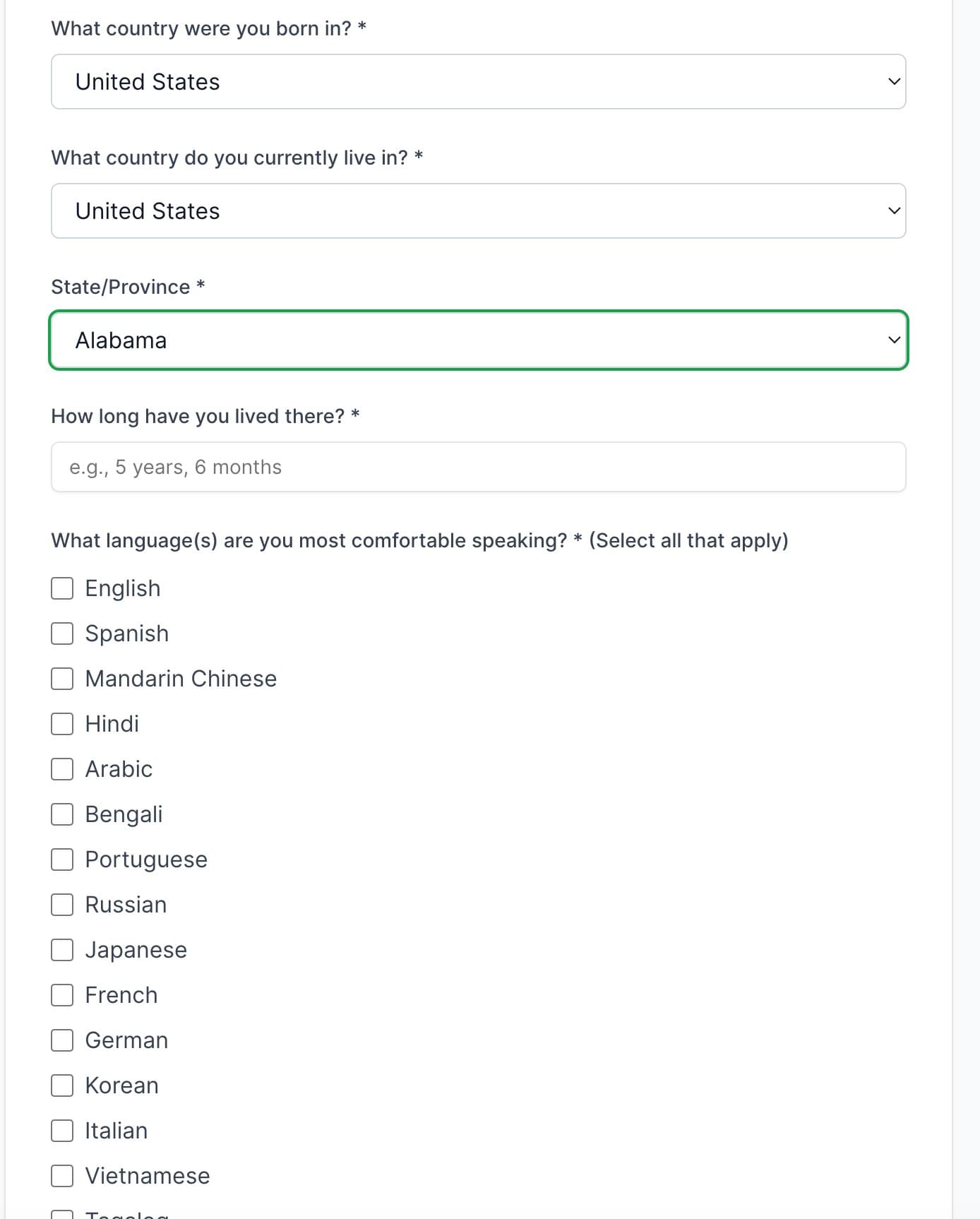
Step 2 of 4 — Background & Location
Select your ethnicity (choose all that apply), country of birth, country of residence, state/province, how long you have lived there, and the languages you speak.
Step 3 of 4 — Religion, Education & Personal Status
Select your religion, highest level of education completed, and marital status.
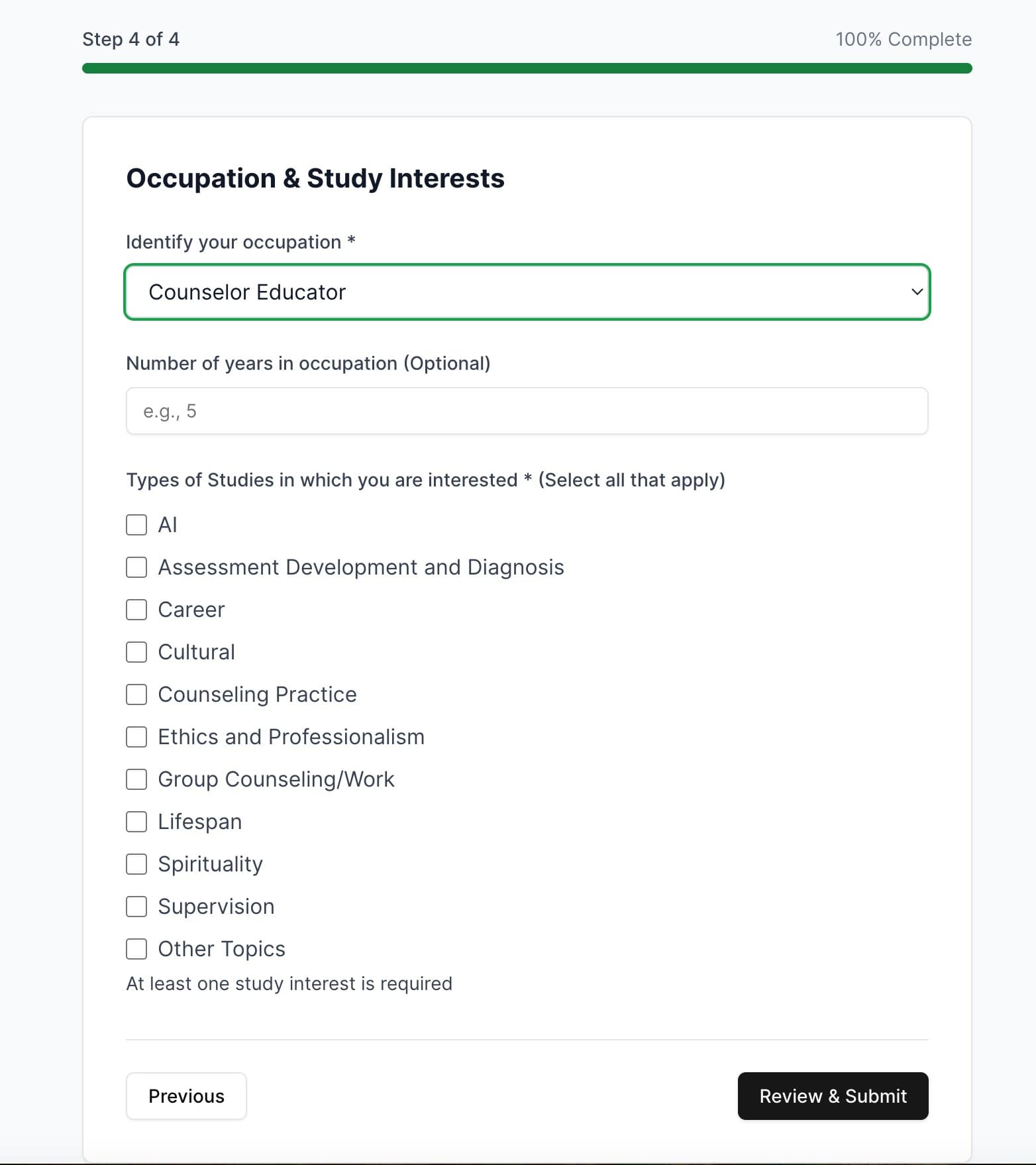
Step 4 of 4 — Occupation & Study Interests
Identify your occupation, number of years in your occupation (optional), and select the types of studies you are interested in.
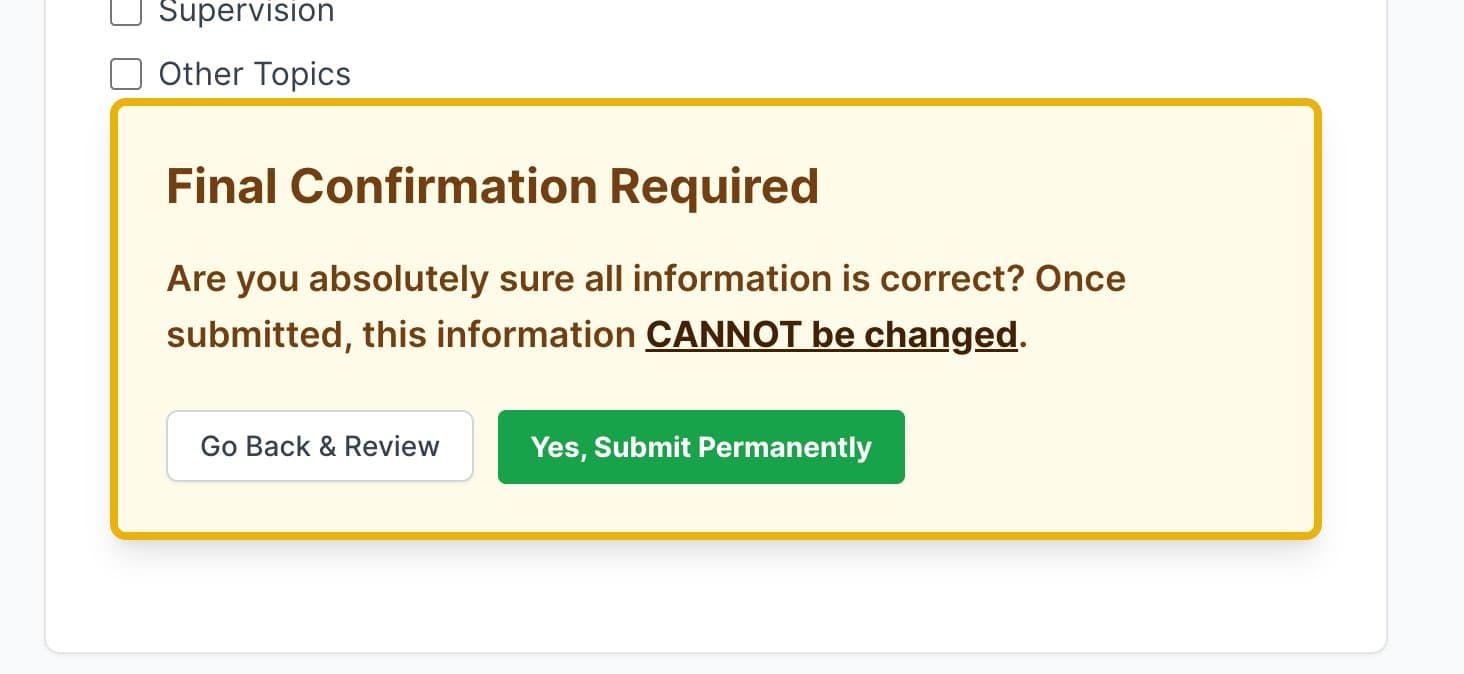
Final Confirmation
Before submitting, you will see a final confirmation prompt. Click "Yes, Submit Permanently" only when you are certain all information is correct. This action cannot be undone.
Step 2: Browse Available Studies
Once your profile is complete, you can browse the Study Marketplace to find studies you are eligible for.
- 1.
From your dashboard, click Browse More Studies, or navigate to the Study Marketplace.
- 2.
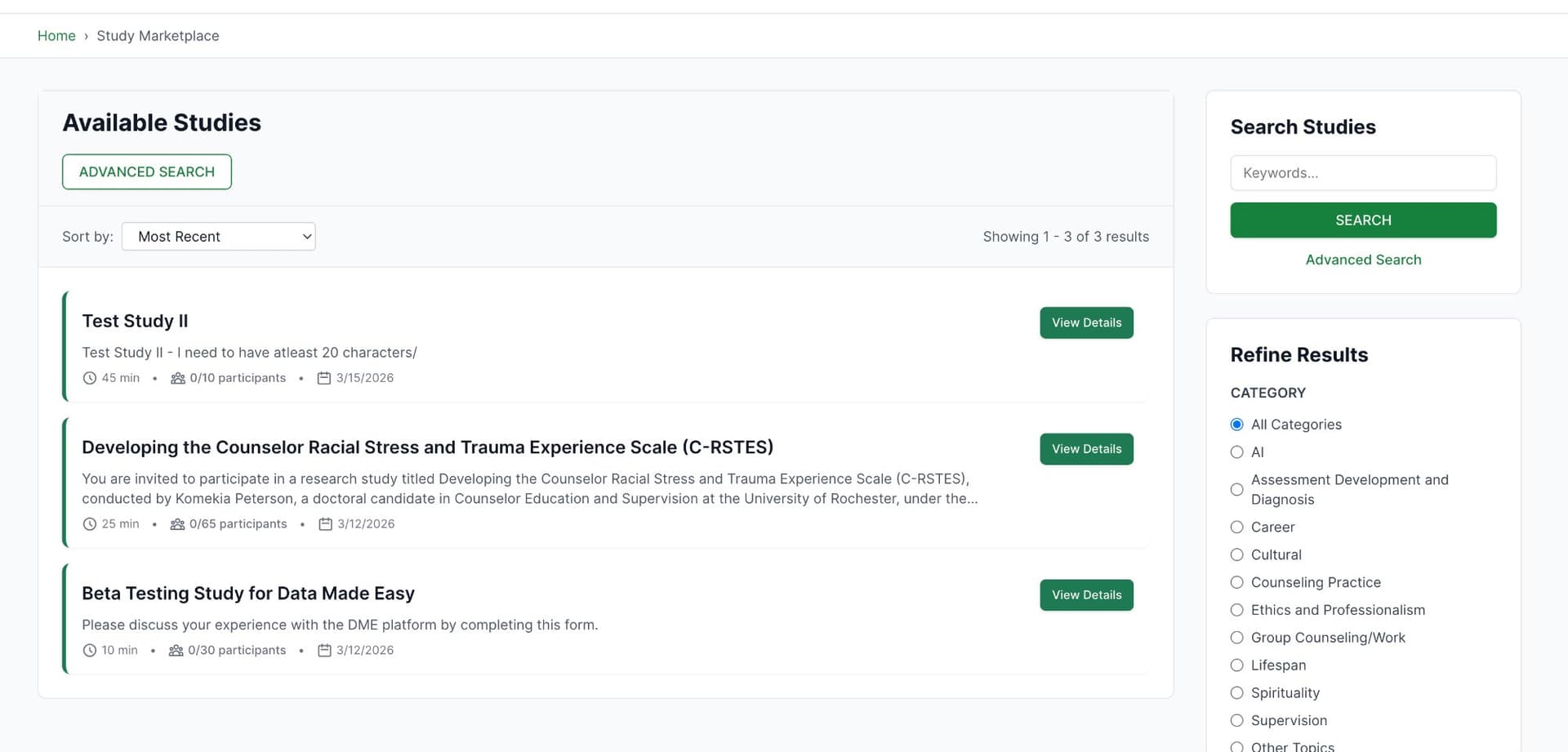
Browse available studies. Each listing shows the study title, description, estimated duration, number of participant slots, and the date it was posted.
- 3.
Use the Sort By dropdown to sort by most recent, or use the Refine Results panel on the right to filter by category (e.g., AI, Career, Cultural, Counseling Practice).
- 4.
Click View Details on any study to see more information.
Step 3: View Study Details and Enroll
The study detail page shows you everything you need to know about a study before enrolling.
- 1.
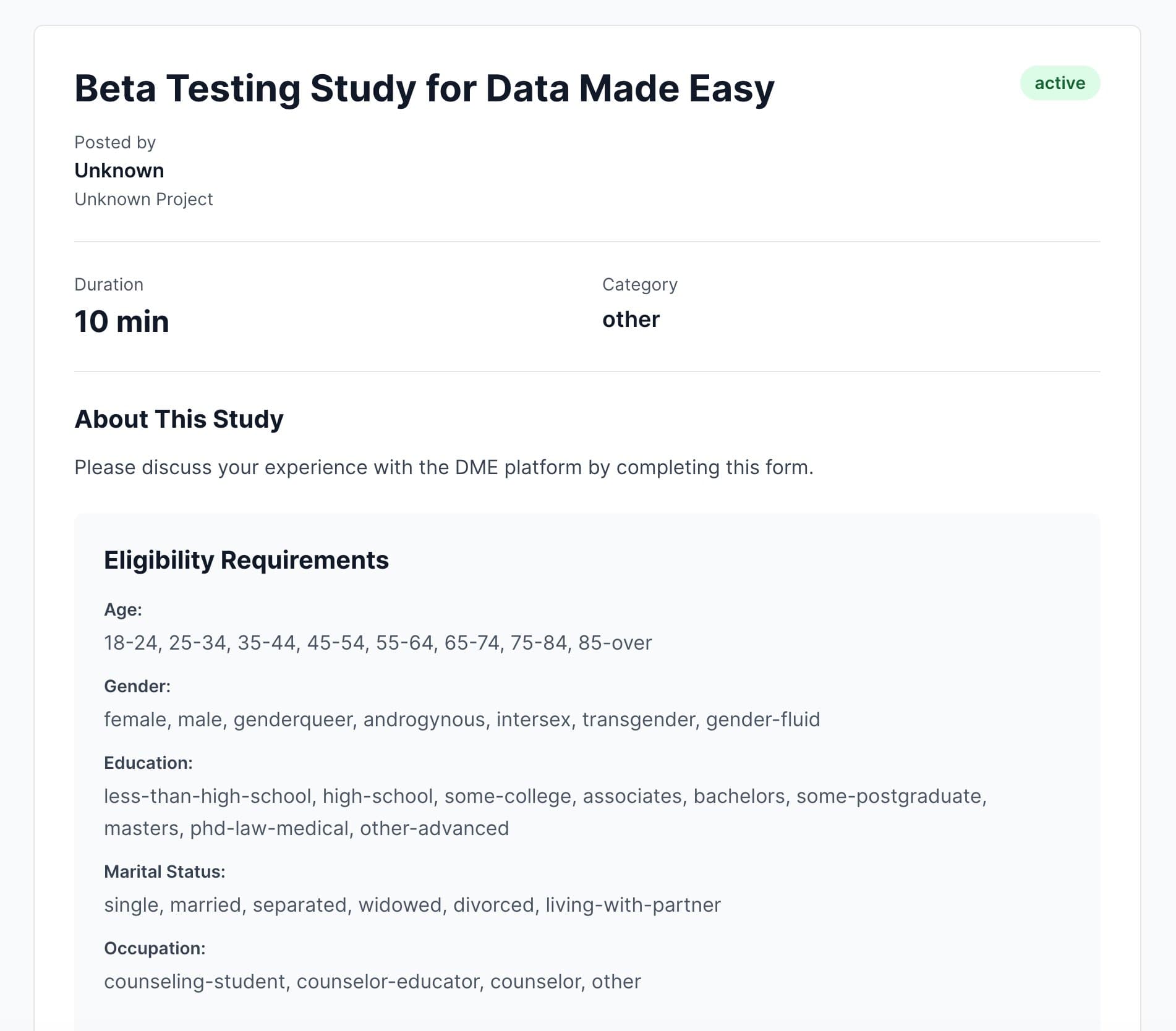
Review the study title, posting researcher, duration, category, and description.
- 2.
Review the Eligibility Requirements section. This lists the criteria the researcher specified.
- 3.
If your demographic profile meets the study's eligibility criteria, you will see a green "You are eligible for this study" banner. Click Enroll in Study to join.
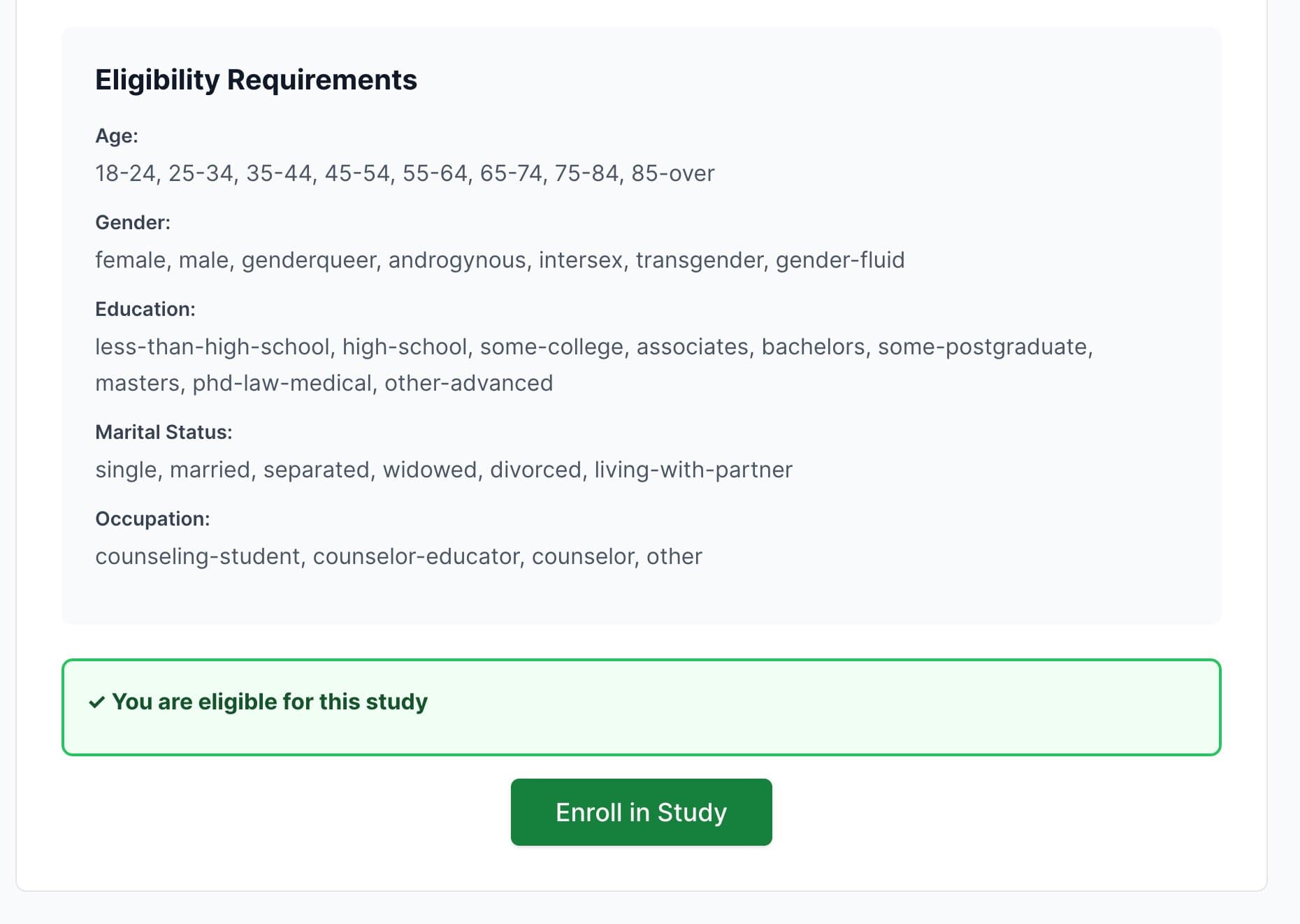
Your eligibility is determined automatically based on the demographic profile you submitted at signup. You do not need to manually check eligibility.
Tracking Your Studies
You can monitor all your study enrollments and their statuses from the My Studies page.
- 1.
Navigate to My Studies from your account menu.
- 2.
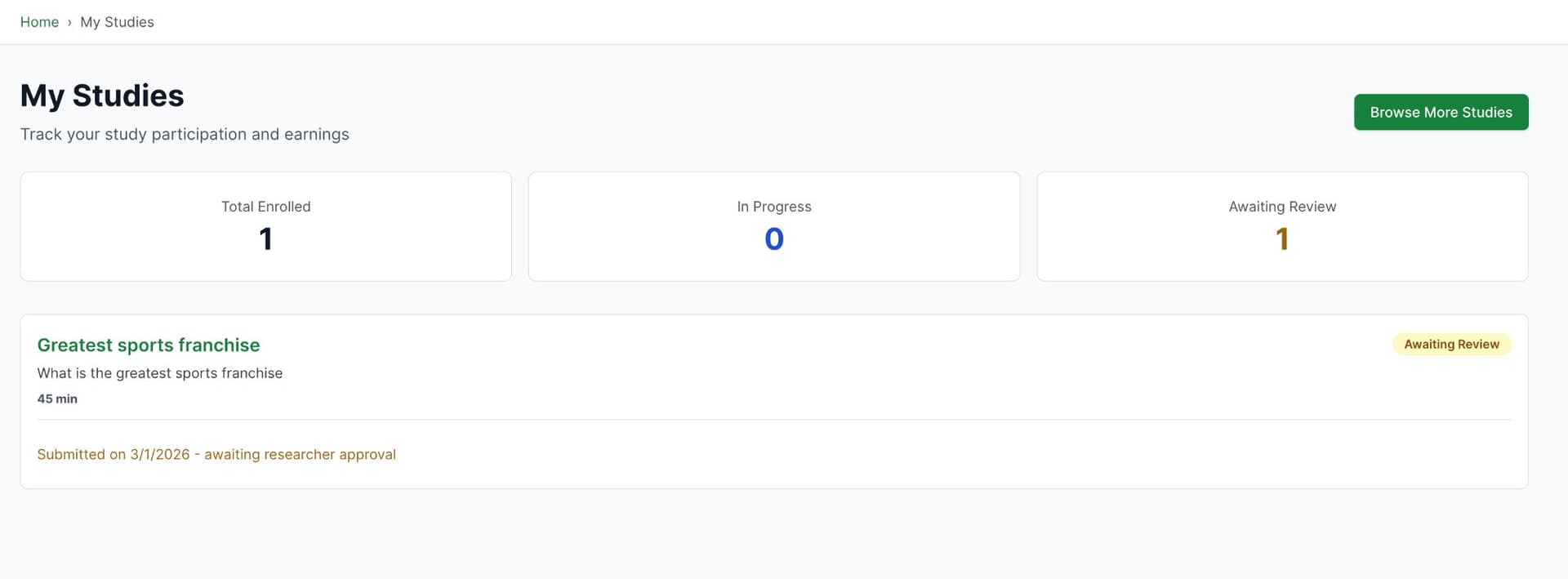
At the top of the page, you will see summary stats: Total Enrolled, In Progress, and Awaiting Review.
- 3.
Each study card shows the study name, description, duration, submission date, and current status.
Study statuses you may see:
- •
In Progress — You have enrolled but have not yet submitted your completion.
- •
Awaiting Review — You have submitted the study and it is pending researcher approval.
For Researchers
This section covers everything you need to know as a researcher: subscribing to a plan, managing payment methods, creating studies, and managing participant applicants.
Your Researcher Dashboard
After logging in, you will land on your Researcher Dashboard. From here you can create new studies, access payment settings, and manage your existing projects.
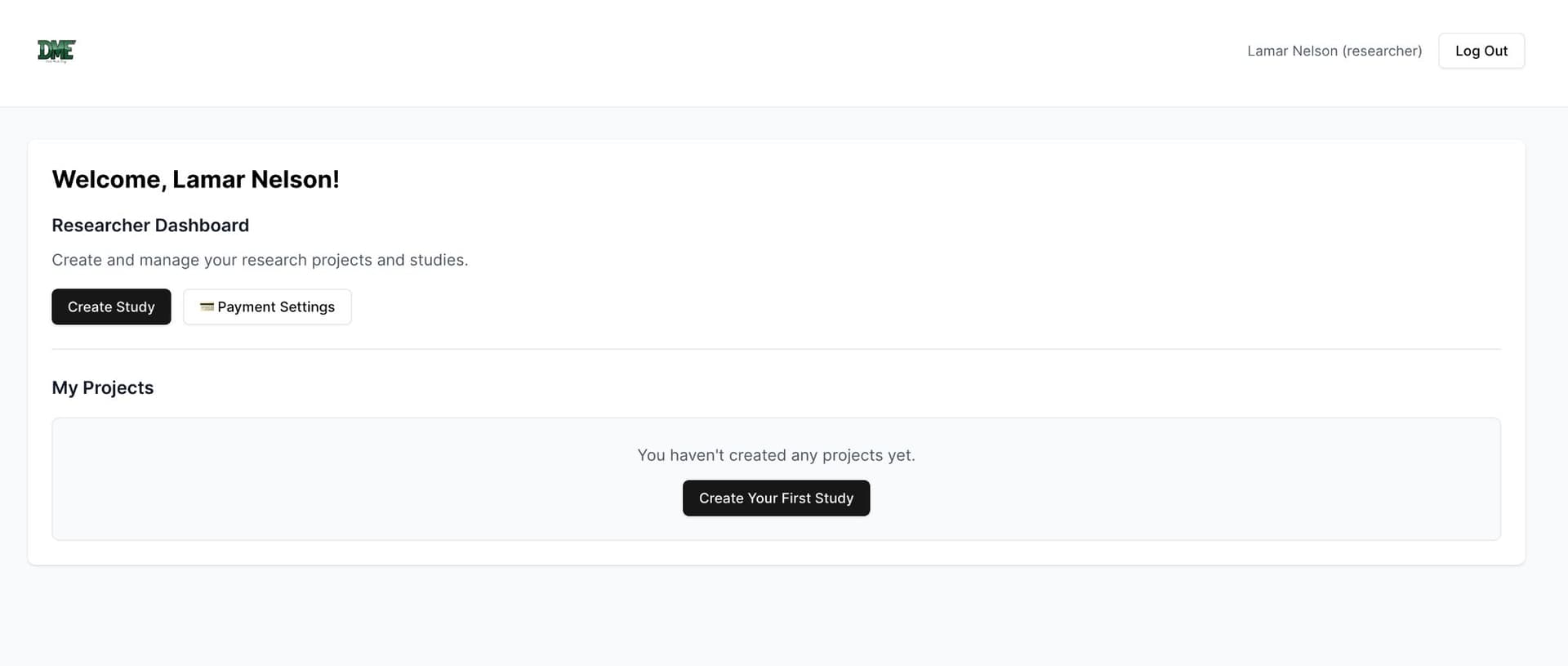
A subscription is required before you can create and publish studies. If you are a new researcher, subscribe to a plan first.
Subscribing to a Plan
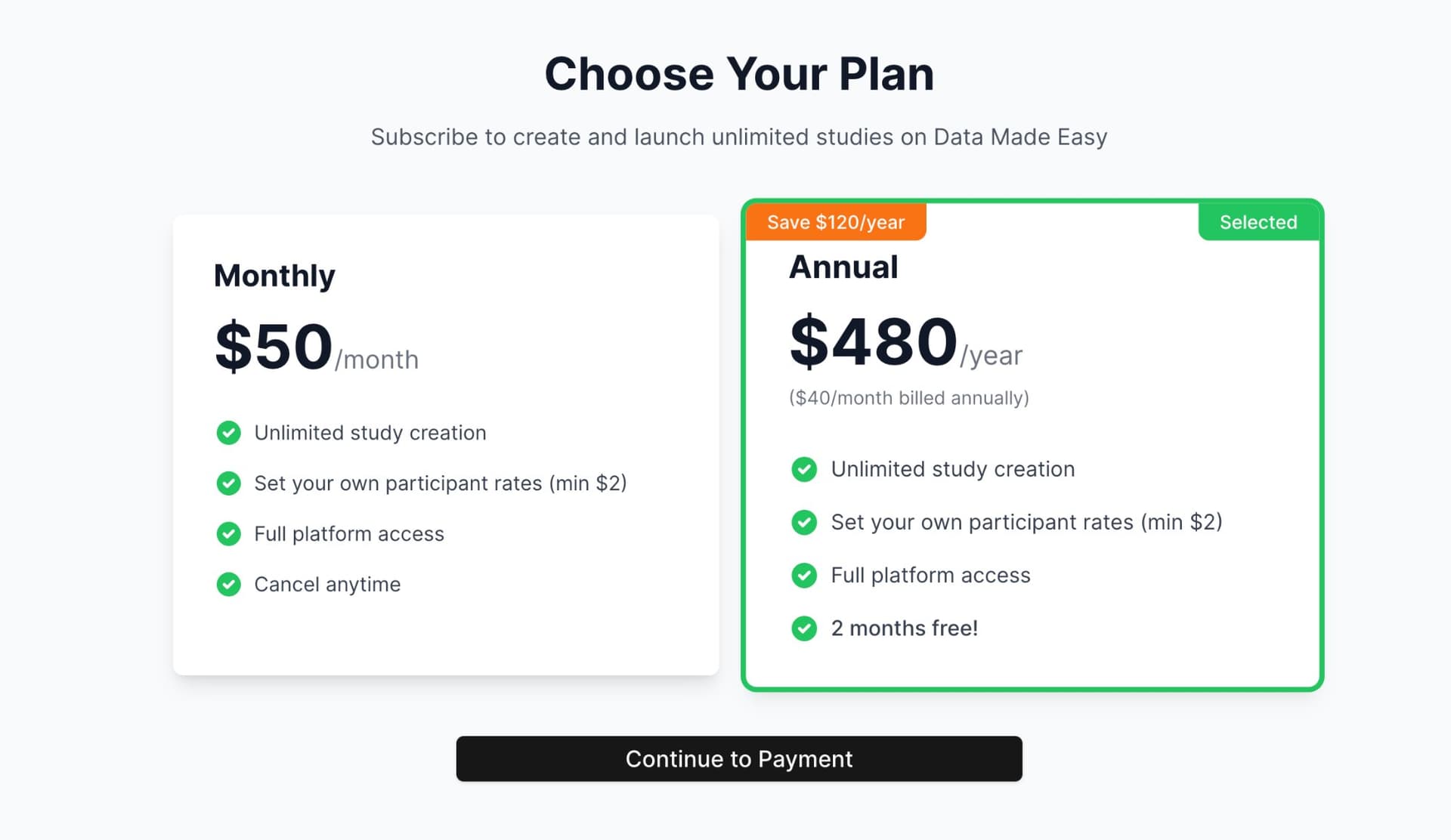
DME offers two subscription plans for researchers: Monthly at $50/month and Annual at $480/year (equivalent to $40/month, saving $120/year). Both plans include unlimited study creation, the ability to set your own participant rates (minimum $5), and full platform access.
- 1.
From your dashboard, click Payment Settings, then navigate to the pricing page. Alternatively, look for a subscription prompt on your dashboard.
- 2.
Review the available plans. Select your preferred billing cycle by clicking on either the Monthly or Annual plan card. The Annual plan is highlighted as the recommended option, offering 2 months free.
- 3.
Click Continue to Payment. On the payment page, enter your card information. If you have a discount code, enter it in the "Have a discount code?" field and click Apply before subscribing.
- 4.
Click Subscribe to [Monthly/Annual] Plan to complete your subscription. Your plan will be activated immediately.
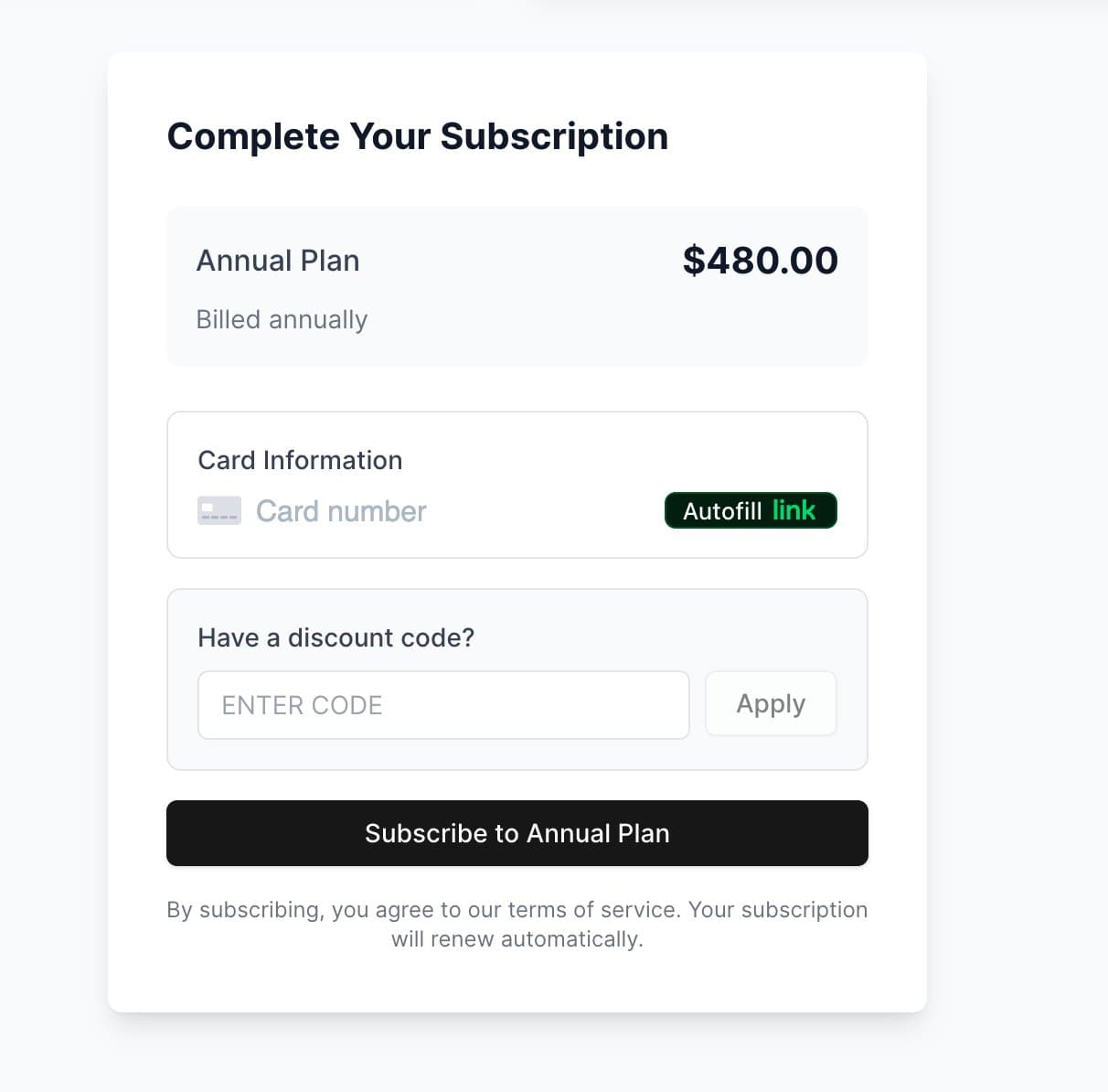
Your subscription will renew automatically. You can cancel at any time from your account settings.
Managing Payment Methods
The Payment Settings page lets you manage the credit or debit cards used to fund your studies.
- 1.
From your dashboard, click Payment Settings.
- 2.
You will see all saved payment methods. One card will be marked as Default — this card is charged automatically when you publish a new study.
- 3.
To add a new card, click + Add Payment Method and enter your card details.
- 4.
To change your default card, click Set as Default next to the card you want to use.
- 5.
To remove a card, click Remove.
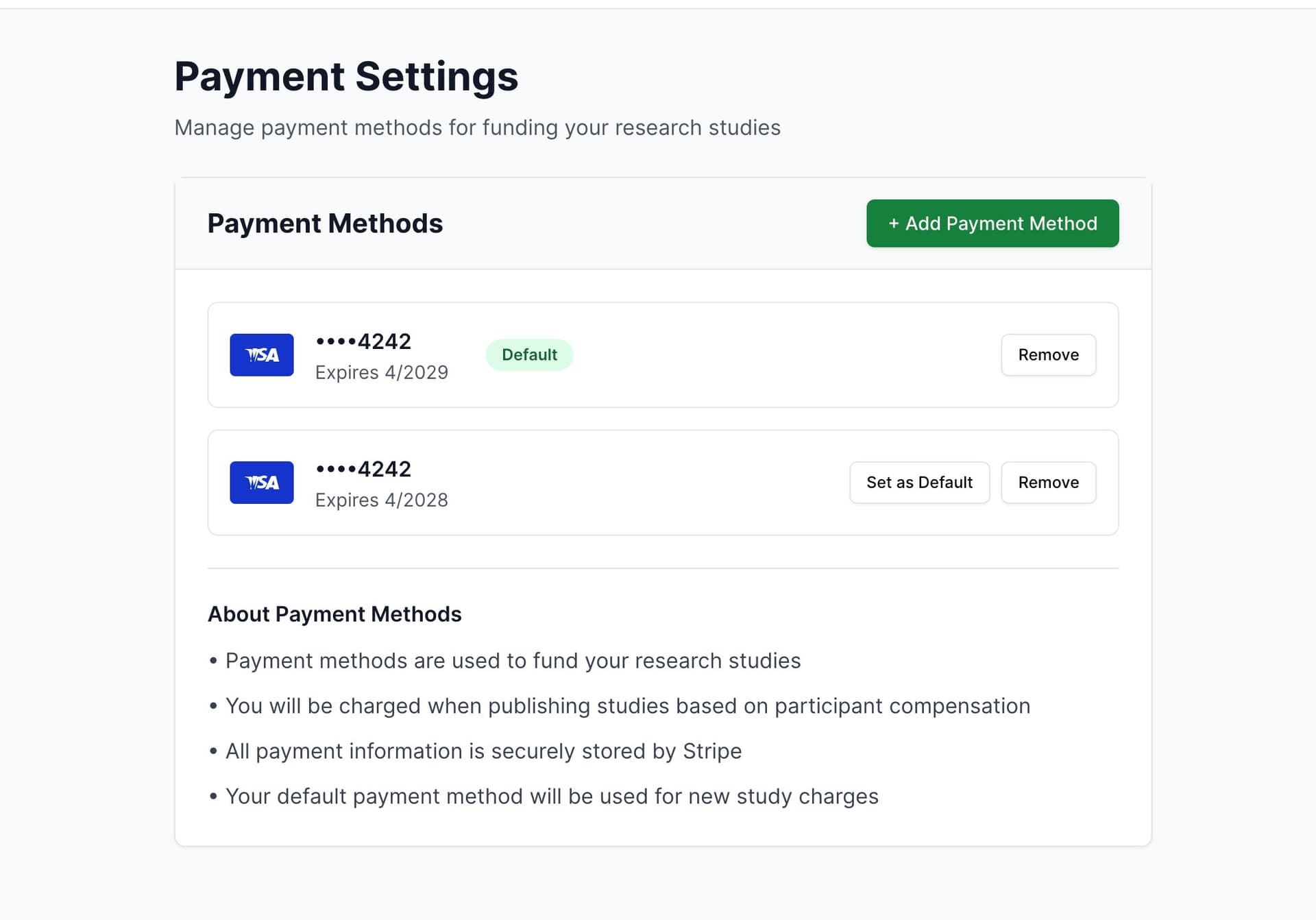
All payment information is securely stored by Stripe. DME does not store your raw card details.
Creating a New Study
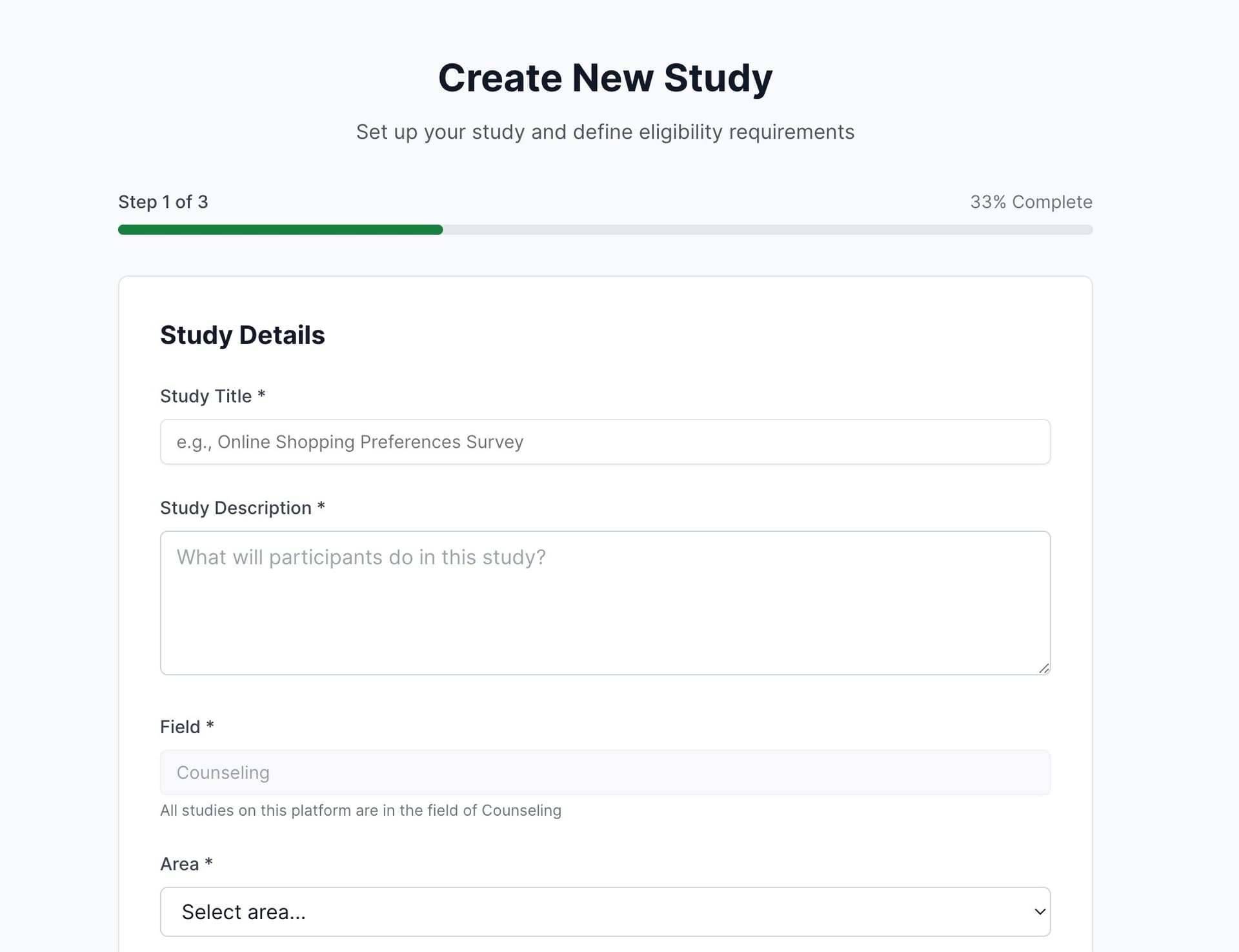
Creating a study is a 3-step process: Study Details, Eligibility Requirements, and Fund Your Study.
- 1.
From your Researcher Dashboard, click Create Study (or Create Your First Study if you have no studies yet).
Step 1 of 3 — Study Details
Fill in the following required fields:
- •
Study Title — A clear, descriptive title for your study.
- •
Study Description — Explain what participants will do in the study.
- •
Field — Automatically set to "Counseling" (all DME studies are in this field).
- •
Area — Select the specific counseling area from the dropdown.
- •
Duration (minutes) — Estimated time for participants to complete the study (1–240 minutes).
- •
Participants Needed — How many completions you need (5–100 participants).
- •
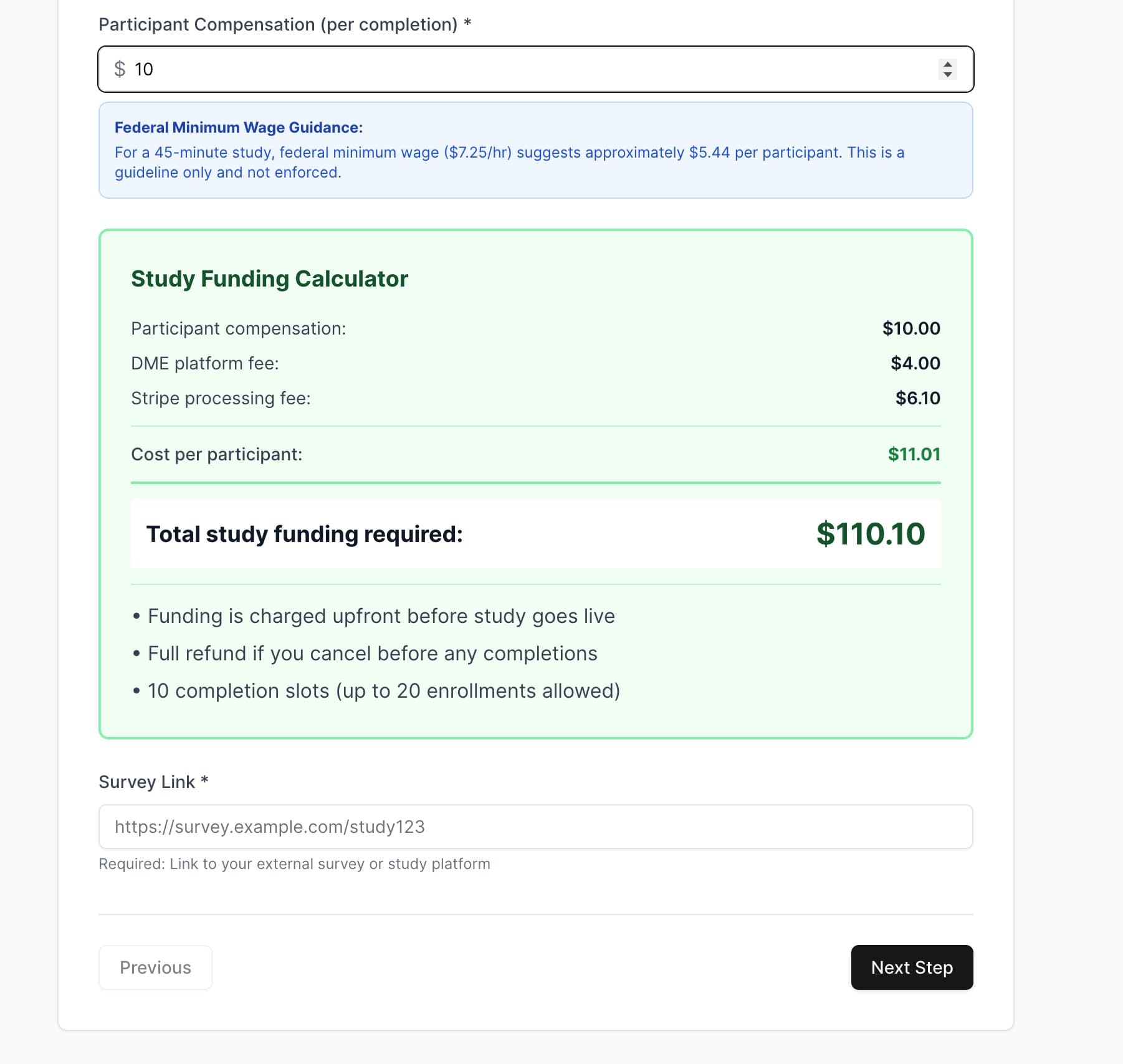
Participant Compensation — The amount you will pay each participant per completion (minimum $5). As you enter a duration, the platform displays a Federal Minimum Wage Guidance tip.
- •
Survey Link — The URL to your external survey or study platform.
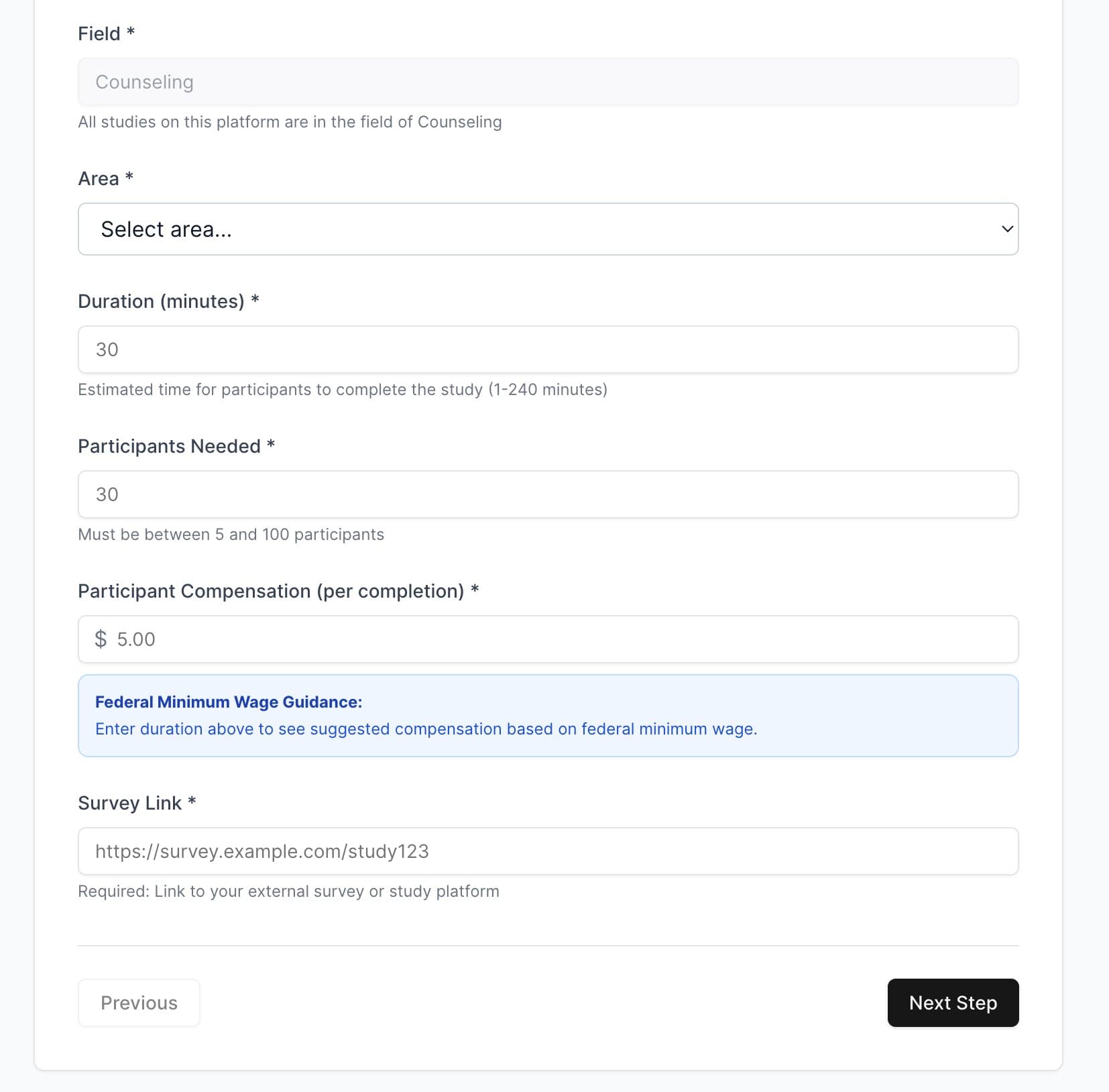
As you fill in the compensation and participant count, a Study Funding Calculator will appear. Your total includes participant compensation plus platform and processing fees, calculated and shown in full at checkout.
- 2.
Click Next Step when you are satisfied with the study details.
Step 2 of 3 — Eligibility Requirements
Define who can participate in your study. Leave any criteria blank to allow any participant matching that attribute.
Available eligibility filters include:
- •
Age Ranges
- •
Gender
- •
Education Level
- •
Marital Status
- •
Occupation
- •
Ethnicity
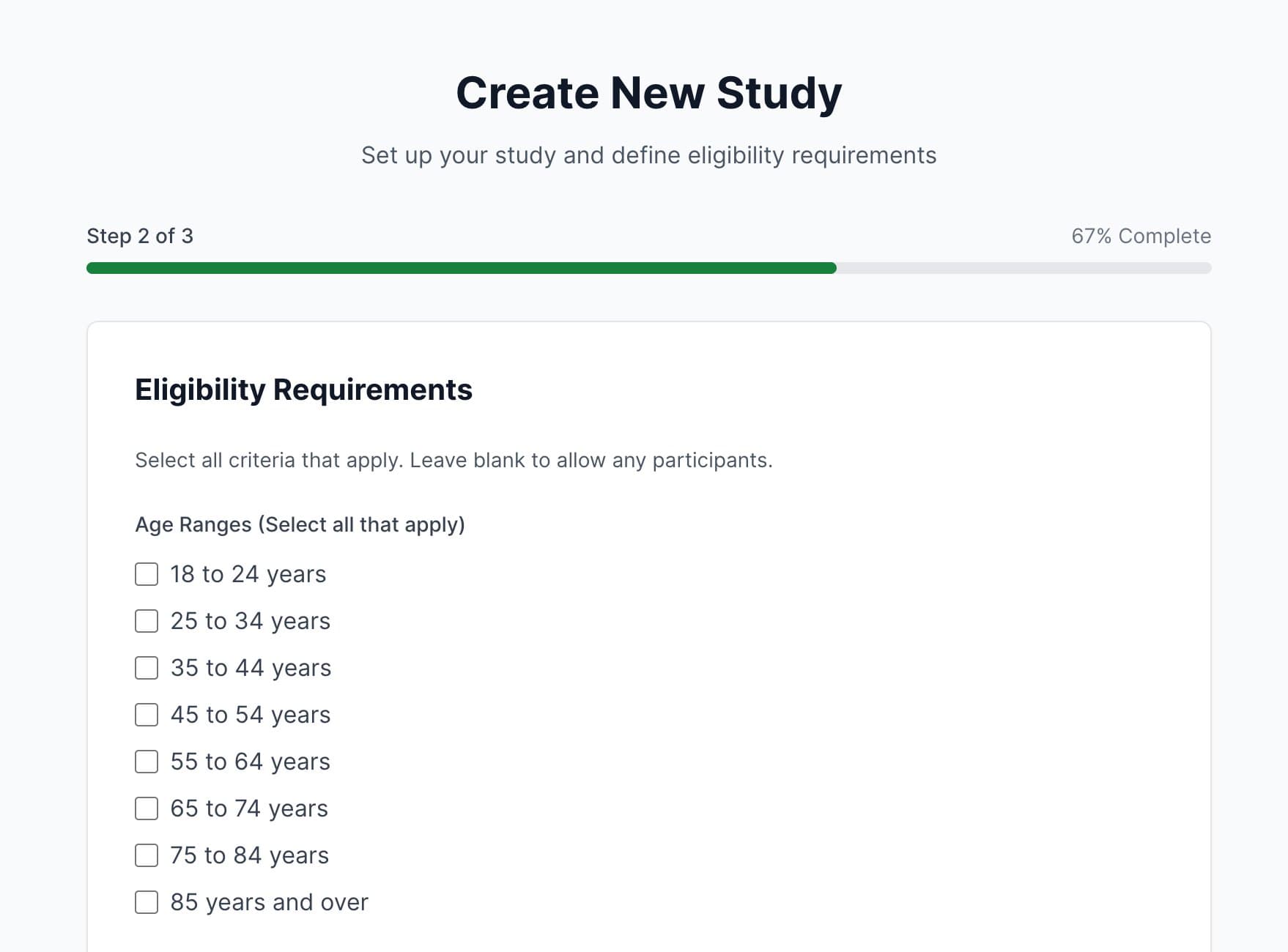

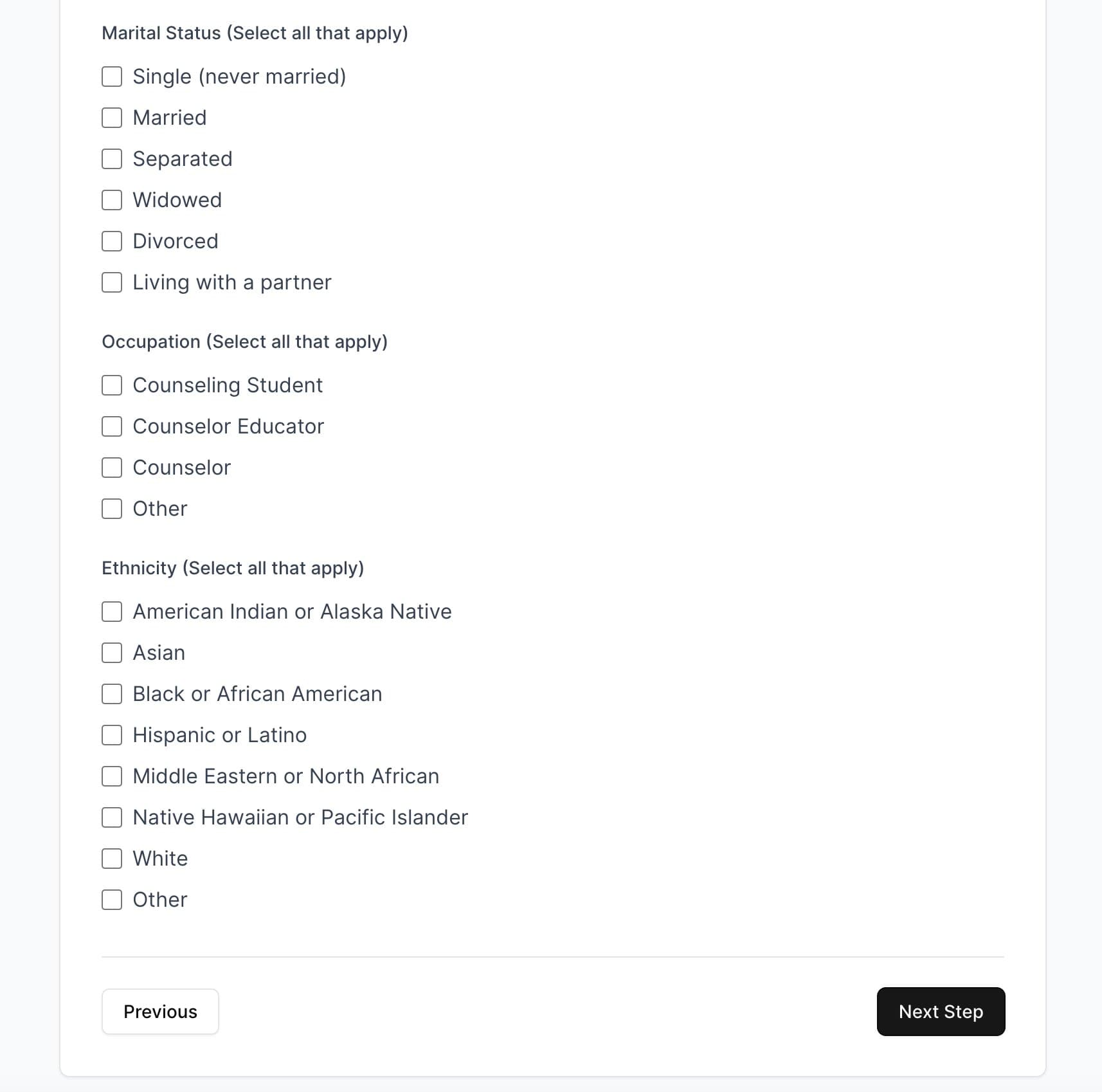
Tip: Leaving all eligibility fields blank means any registered participant can enroll in your study, maximising your potential pool.
- 3.
Click Next Step when your eligibility criteria are set.
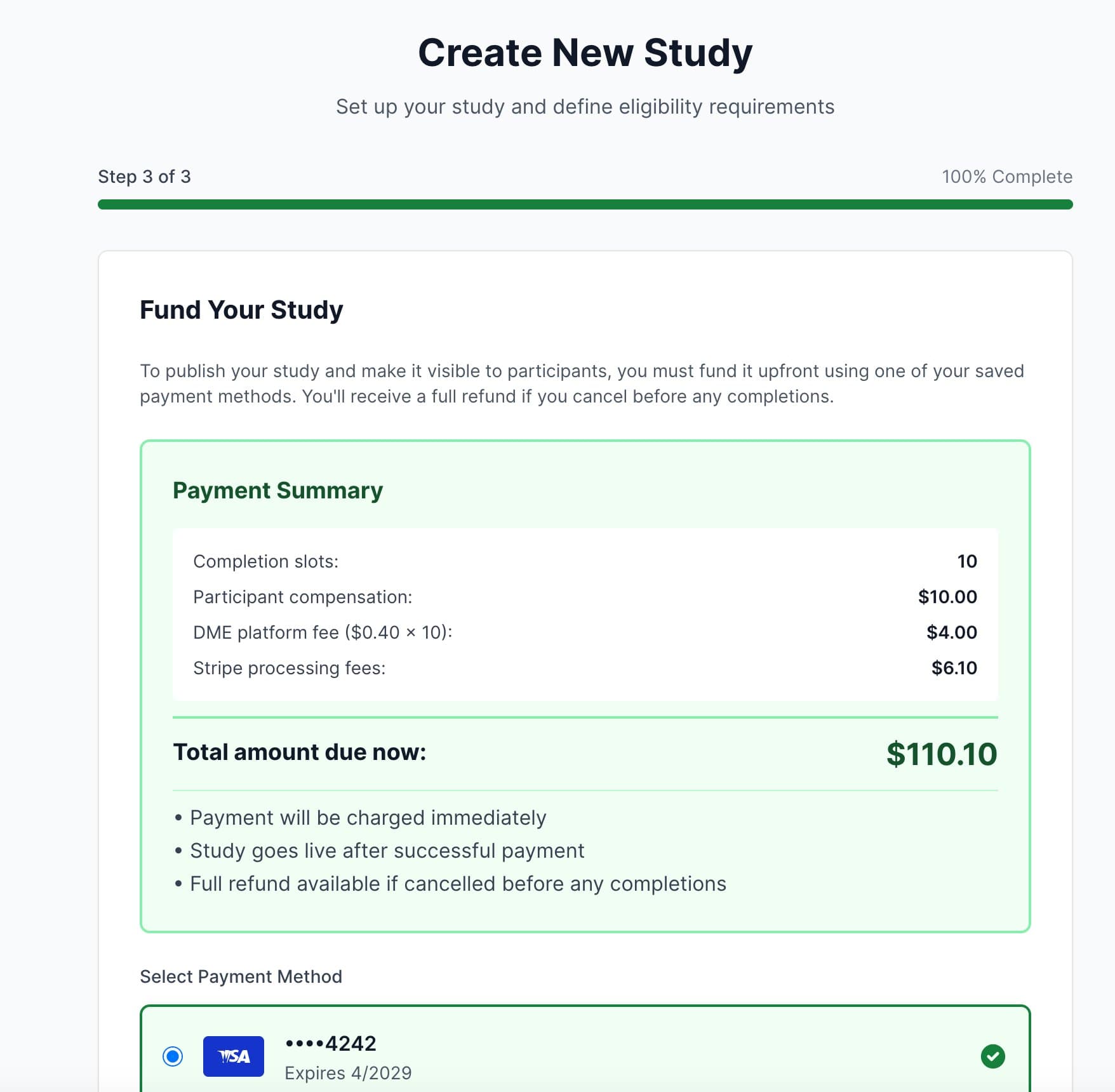
Step 3 of 3 — Fund Your Study
To publish your study and make it visible to participants, you must fund it upfront.
- 4.
Review the Payment Summary, which shows the total amount due based on your study settings.
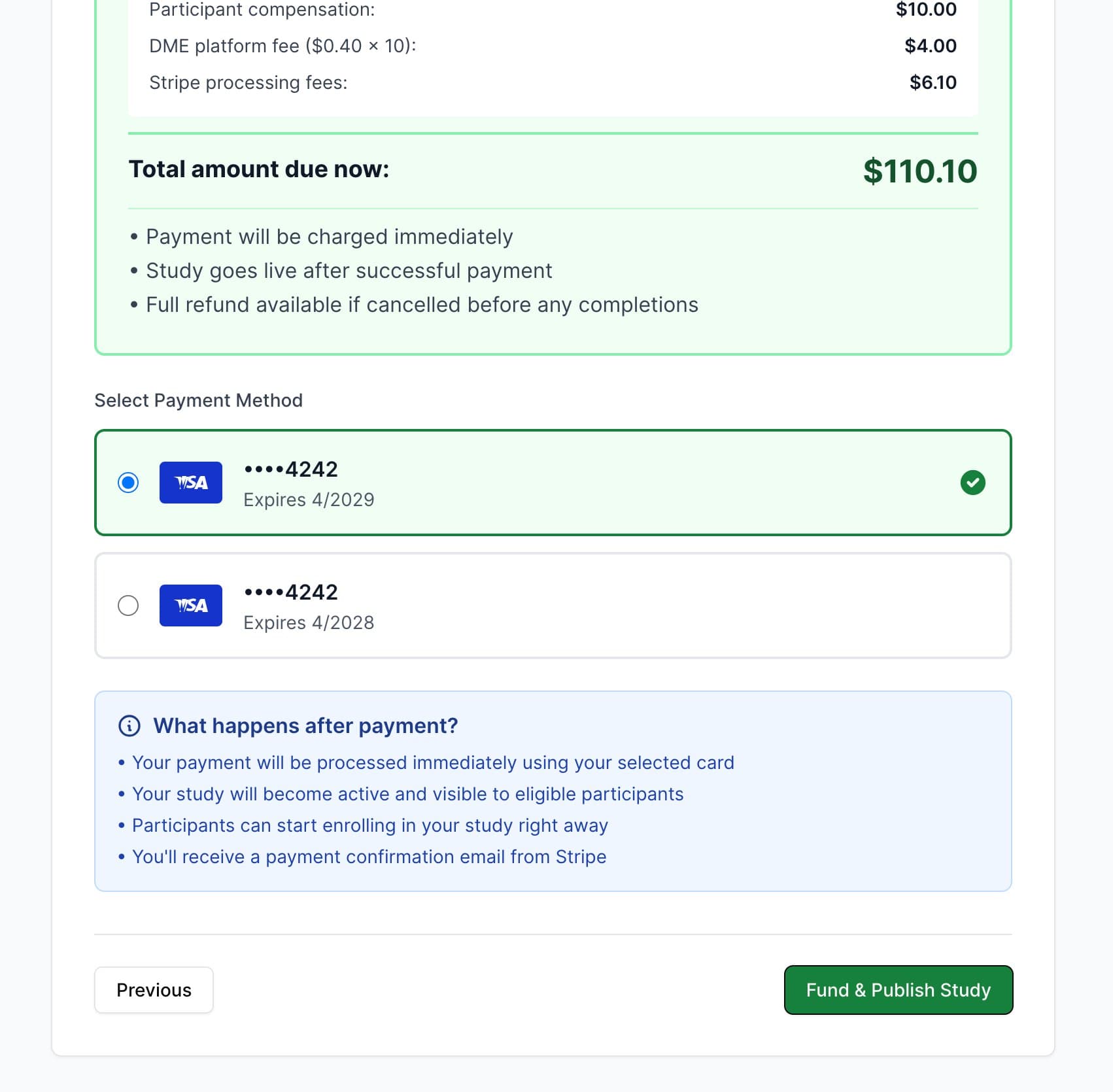
- 5.
Select the payment method you want to use from your saved cards.
- 6.
Review what happens after payment:
- •
Your payment will be processed immediately.
- •
Your study will become active and visible to eligible participants.
- •
Participants can start enrolling right away.
- •
You will receive a payment confirmation email from Stripe.
- •
- 7.
Click Fund & Publish Study. You will be redirected to a Stripe payment page to complete the transaction.
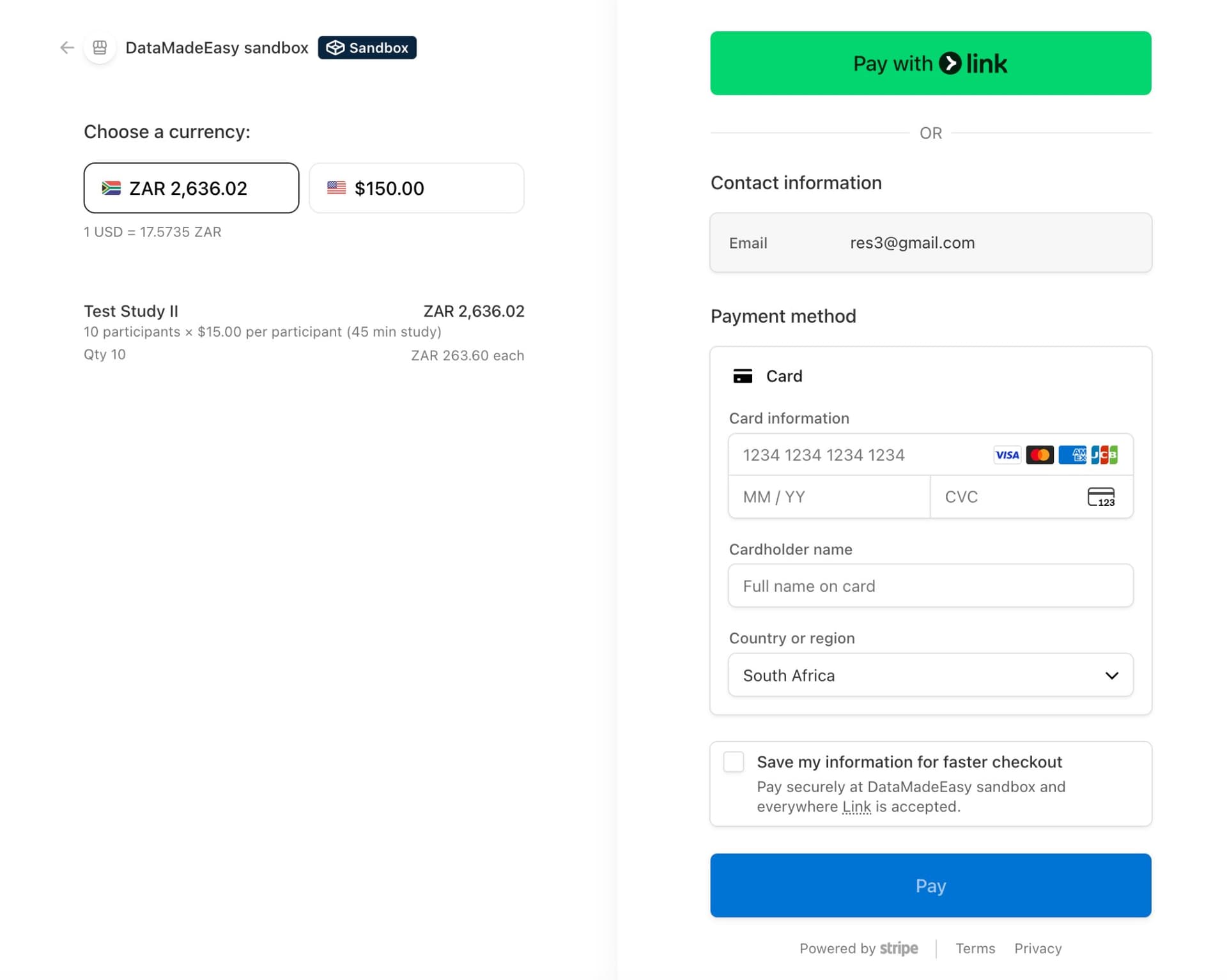
You will receive a full refund if you cancel your study before any participants complete it.
Managing Your Studies
After funding and publishing a study, you can manage it from the study detail page.
- 1.
From your Researcher Dashboard, find your project under My Projects and click View Details.
Funded & Active Study
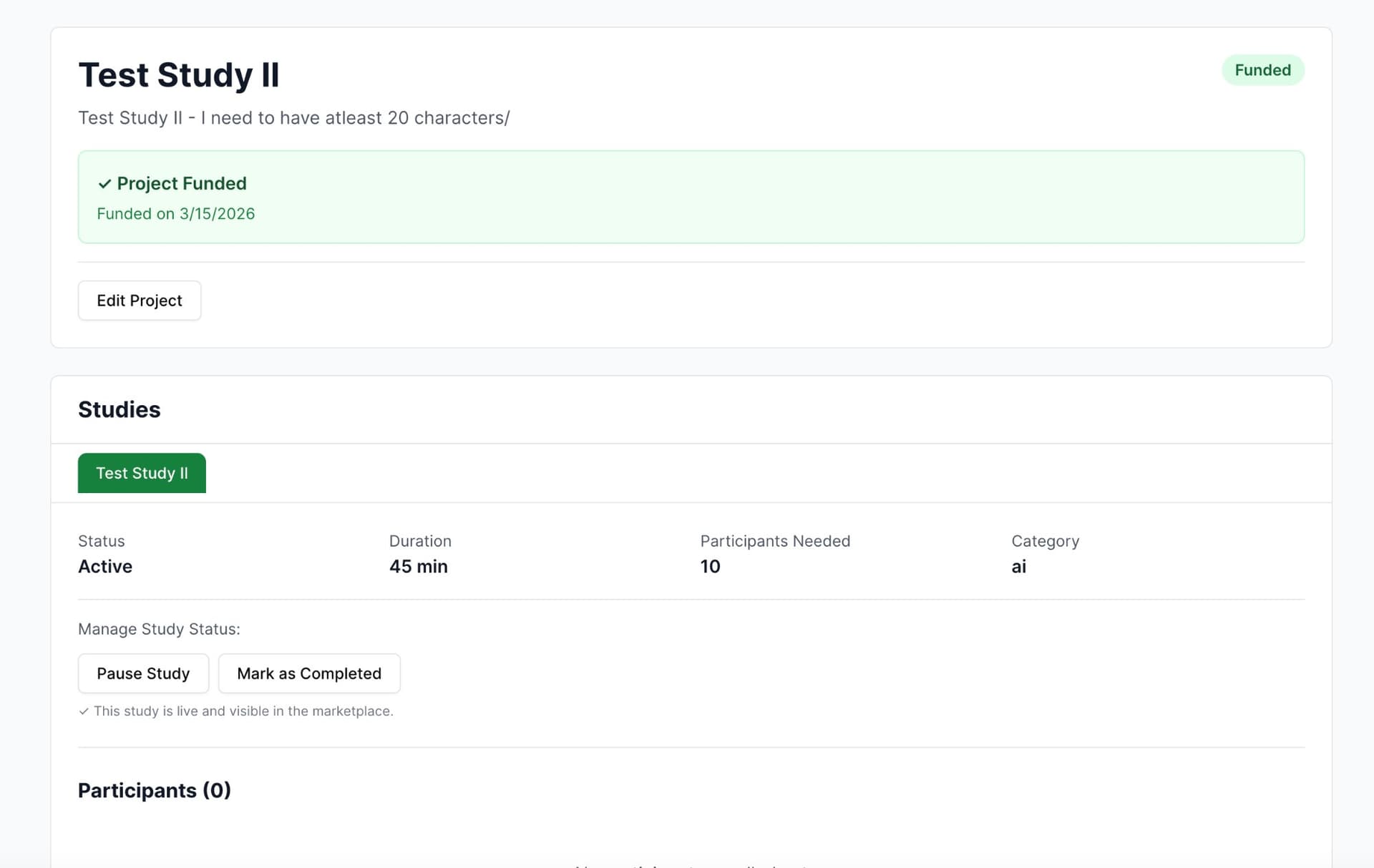
Once funded, the project shows a green "Project Funded" banner with the funding date. The study status updates to Active and a confirmation that it is live and visible in the marketplace appears.
From the study detail page you can:
- •
Pause Study — Temporarily hide the study from the marketplace.
- •
Mark as Completed — Close the study to new enrollments.
- •
View Participants — See the list of enrolled participants and their completion status.
Study Status Reference
- •
Pending — Study has been created but not yet funded.
- •
Active — Study is funded, live, and accepting participants.
- •
Paused — Study is temporarily hidden from the marketplace.
- •
Completed — Study is closed to new enrollments.
- •
Archived — Study has been archived by the researcher or admin.
Unfunded Study
If a study shows "Not Funded," click Fund Project in the blue banner to complete the payment and make the study live.